

You've found a promising prospect on LinkedIn, opened the company website, checked the contact page, and still haven't found a usable email address. After repeating that process across several accounts, the true cost becomes obvious: manual research consumes selling time, while rushed copying creates duplicates, misspellings, and incomplete CRM records. A browser extension can remove much of that friction, but installation is only the starting point.
The practical questions are harder. What can the extension access? Where do discovered addresses go? Does a found address belong to the person you want to contact, and can you lawfully use it for outreach? This guide examines the Kendo email finder Chrome extension through that operational lens, including workflow design, permissions, verification, data hygiene, and responsible activation.
What Is the Kendo Email Finder Chrome Extension
A sales representative researching a target account usually moves between several tabs. LinkedIn supplies the person and role, the company website confirms the business, Google surfaces additional pages, and the CRM becomes the place where everything must eventually be recorded. The weak point is the handoff. Copying an address from one tab to another feels harmless, but it creates opportunities for transcription errors and inconsistent notes.
The Kendo email finder Chrome extension is designed to sit inside that browser workflow. Rather than making the user leave the active page for every lookup, it can help identify business contact details while the user researches profiles, websites, or search results. The useful principle is simple: reduce the number of manual transitions between discovery and record creation.
That doesn't mean every detected address is correct or appropriate for outreach. A browser tool can surface a pattern, an address displayed on a page, or a possible match. It can't automatically establish that the mailbox is active, that the person still holds the role, or that the user has a lawful basis for contacting them. A clear distinction between discovery, verification, and activation prevents a fast tool from becoming a fast way to create bad data.
For readers evaluating the category rather than one product, this overview of email finders provides useful terminology for separating email discovery from broader enrichment. In day-to-day operations, the extension is most valuable when it supports a defined process: identify a relevant contact, capture the source URL, check the result, deduplicate the record, and only then decide whether it belongs in an outreach sequence.
Installing and Configuring Your Extension
Start with the Chrome Web Store listing, not a download link sent through an unfamiliar message. Check the publisher, requested permissions, privacy disclosures, and recent user feedback before selecting Add to Chrome. The store's user metric reflects installations, not necessarily active usage, as explained in Chrome's documentation on extension metrics, so installation volume alone shouldn't determine whether a tool deserves access to your browsing environment.
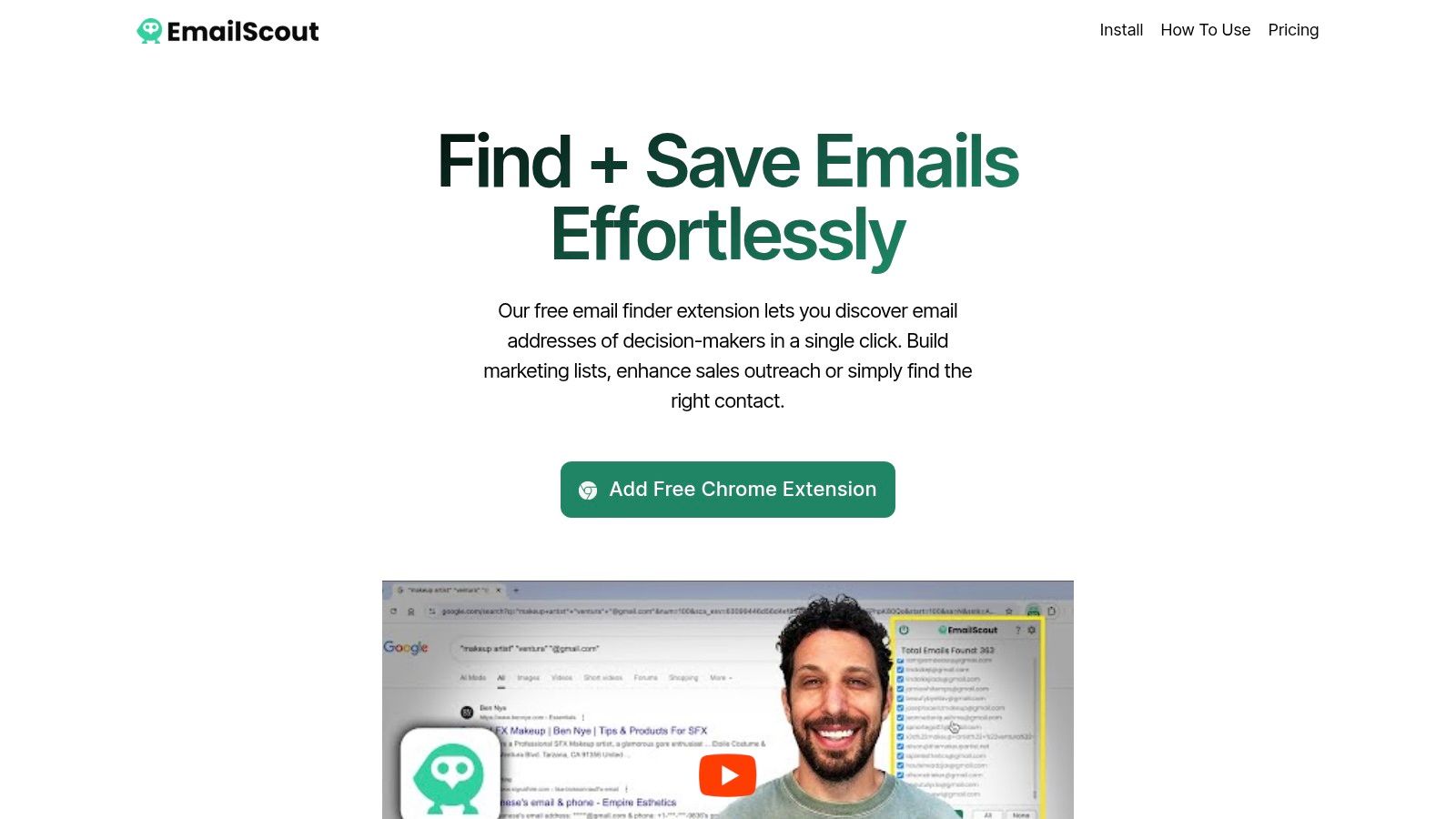
After installation, pin the extension from Chrome's extensions menu so the control remains visible during research. Sign in or create the required account, then review the initial settings before opening prospecting pages. If the product offers choices for automatic saving, export format, or connected destinations, select the narrowest configuration that matches your workflow.
Configure access before collecting data
Chrome distinguishes API permissions, optional permissions, and host permissions. Host permissions determine which domains the extension can access, while content-script match patterns determine where code may be injected. Use the Chrome permissions guide to understand what each request means, then avoid granting broad access to every website when the workflow only requires a small set of approved domains.
A sensible first-run checklist looks like this:
- Review each domain request. Allow only the pages needed for current prospecting.
- Test one approved profile and one company page. Confirm that the extension responds where expected.
- Inspect the output before enabling AutoSave. Make sure the source URL, name, company, and result are captured in a useful format.
- Set an export destination. Decide whether CSV or TXT is appropriate before the first batch.
- Document the process. Tell team members what they may collect and which fields must be reviewed.
Use this guide to lead-generation Chrome extensions as a reference point when comparing browser-based workflows. A short permission review at the beginning is more efficient than investigating unexplained data collection after a campaign has already launched.
For a visual walkthrough of the browser workflow, use the following demonstration after reviewing the settings above.
Core Features That Power Your Outreach
The value of an email-finding extension comes from how well it fits the work around the lookup. A result that stays in a browser popup still creates administrative work. A result that carries its source, confidence status, and review history into the next step becomes a usable sales record.
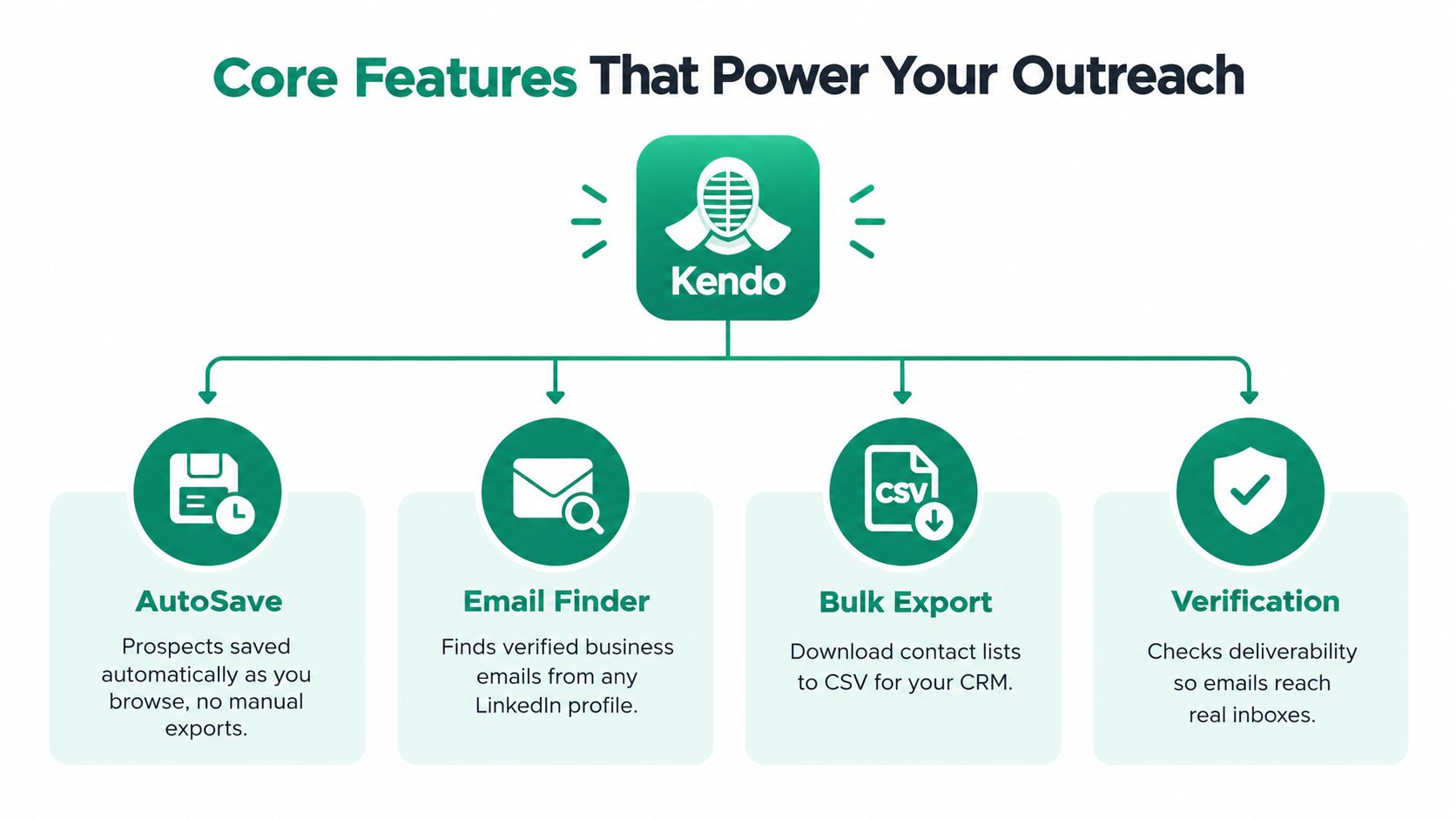
AutoSave should support review, not replace it
AutoSave can capture addresses as a representative browses, which is helpful during account research. It reduces repeated copying and lets the user stay focused on the page. The operational risk is silent accumulation. If every discovered address enters a shared list automatically, the database can fill with duplicates, generic mailboxes, outdated roles, and records collected for the wrong client.
Configure AutoSave with a review stage wherever possible. Store the source URL, collection date, target company, and person name alongside the address. Those fields make later investigation possible when a colleague asks where a record came from or why it was added.
URL Explorer is useful for account-level research
URL Explorer is suited to a different job. Instead of waiting for a result on one page, a researcher can submit a controlled set of company or profile URLs for extraction. This can speed up research across a defined account list, but it also increases the need for scope control. Batch processing should never become an excuse to collect every address from unrelated pages.
Create batches by campaign, client, or account segment. Review the output for duplicates and role accounts before sending it to a CRM or sequencer. The extension's network requests also need to be explicitly allowed by its permissions, and Chrome recommends limiting access to capabilities that are essential to the feature, as described in its user privacy and security guidance.
Export is a handoff, not a quality check
CSV and TXT exports are convenient because they work with many sales systems. They don't validate the records. Before import, normalize capitalization, remove duplicate addresses, map the company and contact fields, and preserve the original source. A clean export should make it obvious which records are ready for verification and which still need review.
The best workflow treats the extension as the collection layer. Validation, suppression checks, CRM matching, and campaign eligibility belong in the next stages. That division keeps speed from being confused with accuracy.
Privacy and Data Governance Considerations
“Free” describes a price, not a security posture. A browser extension may interact with page content, browsing activity, account information, and contact records, depending on its permissions and architecture. Before granting access, a sales operations manager should be able to answer what the extension reads, what it sends to a server, how long the data is retained, and how an administrator or user can delete it.
Security research reported 287 Chrome extensions allegedly exfiltrating browsing-history data, affecting an estimated 37.4 million installations, according to The Register's report on the research. That finding doesn't establish that every email-finder extension behaves that way. It does show why users should evaluate permissions and data flows rather than treating a browser extension as a harmless button.
Ask these questions before approval
A procurement or security review should request direct answers to the following:
- Page access: Can the extension run on every website, or only on user-approved domains?
- Collection trigger: Does it collect data continuously, or only after a user action?
- Storage location: Are addresses stored locally, on the vendor's servers, or in both places?
- Retention: Can the user set a retention period and permanently delete collected records?
- Sharing: Does the vendor disclose subprocessors, analytics use, or third-party enrichment?
- Export control: Can administrators restrict downloads or audit who exported a list?
- Client separation: Can an agency keep records for separate customers logically separated?
Chrome specifically warns that extension storage isn't encrypted. A locally stored contact list should therefore not be treated as secure because it never appears in a visible CRM. If AutoSave transmits data to a backend, the organization also needs to understand the transport, access controls, deletion process, and contractual terms.
Practical rule: Grant the smallest permission set that supports the current task. Add a domain only when the workflow requires it, and remove access when the project ends.
For European contacts, privacy review also has a legal dimension. The European Commission's GDPR guidance explains that automated processing of personal data falls within the GDPR, and that personal data includes information relating to an identified or identifiable living person. An address doesn't stop being personal data because it was found publicly or because it was pseudonymized.
A defensible process records provenance, limits collection to a stated purpose, protects exports, honors deletion requests, and gives users a way to object where required. Those controls matter more than a broad promise of unlimited discovery.
From Discovery to Compliant Outreach
An address can be syntactically correct and still be unusable. It may belong to a former employee, route to a catch-all domain, represent a shared role account, or fail because the mailbox no longer accepts messages. It may also be publicly visible without giving the collector permission to use it for a particular marketing purpose.
Treat finding and validation as separate workflow events. Discovery answers, “What address might be associated with this person or company?” Validation asks whether the address appears technically reachable and how confident the system is. Compliance asks a different question, “Can this organization process the data and send this communication under the rules that apply?”
Build confidence into the record
A useful record should contain more than an email string. Capture:
- Source URL: Where the address was found.
- Discovery time: When the result was collected.
- Confidence state: For example, domain valid, mailbox likely, catch-all, or undeliverable.
- Verification time: When technical checks were last performed.
- Contact context: Person, role, company, and campaign purpose.
- Suppression status: Whether the address must be excluded from outreach.
Server-side verification may examine domain mail configuration and controlled SMTP-level signals without sending an unsolicited message. Even then, results can be inconclusive. Catch-all behavior, temporary failures, role accounts, recycled mailboxes, and anti-enumeration controls all limit what verification can prove.

Public availability isn't permission
A professional address displayed on a website may support a relevant business conversation, but public visibility isn't a universal permission slip. The European Commission specifically identifies promotional email as an activity that must comply with applicable data-protection and ePrivacy rules. The GDPR can also apply to organizations outside the EU when they offer services to people in the EU or monitor their behavior.
Keep the first activation narrow. Exclude generic addresses such as info@ and support@ when the campaign requires an individual decision-maker, and don't treat a successful lookup as consent. Include a clear objection or unsubscribe path appropriate to the communication, maintain a suppression list, and stop future messages when a recipient objects.
Gmail deliverability rules add a separate operational constraint. Google defines a bulk sender as one sending close to 5,000 messages or more to personal Gmail accounts within 24 hours, and says enforcement for non-compliant traffic is being ramped up from November 2025, as stated in Google's sender guidelines. The lesson is broader than that threshold: list growth should not outrun authentication, bounce monitoring, sender reputation, or unsubscribe handling.
A responsible prospecting list is therefore not the largest list. It's a reviewed set of relevant contacts with traceable sources, explicit confidence states, suppression controls, and a clear reason for outreach.
Comparing Kendo with EmailScout Alternatives
A fair comparison starts with the job to be done, not the number of buttons in a popup. Kendo is positioned as a browser-first email discovery tool for users who want to work from LinkedIn and other web pages. Other products may focus on domain search, large databases, CRM enrichment, phone data, or outreach automation.
The right choice depends on where the bottleneck occurs. If representatives already know their target accounts and need a quick lookup while browsing, a lightweight extension can be practical. If the team needs account discovery, enrichment, validation, ownership rules, and reporting, a standalone platform or CRM-connected system may justify more setup.
Compare the workflow, not just the feature list
| Evaluation area | Kendo-style browser workflow | Broader alternative workflow |
|---|---|---|
| Starting point | A profile, company page, or search result | A domain, uploaded list, database, or CRM record |
| Main advantage | Fast research with fewer tab changes | More structured enrichment and list management |
| Main risk | Automatic collection can create unreviewed records | More integrations can increase data-sharing complexity |
| Best control | Narrow permissions and source capture | Field mapping, validation states, and audit trails |
| Operational question | Can the result be reviewed before export? | Can the team govern the full record lifecycle? |
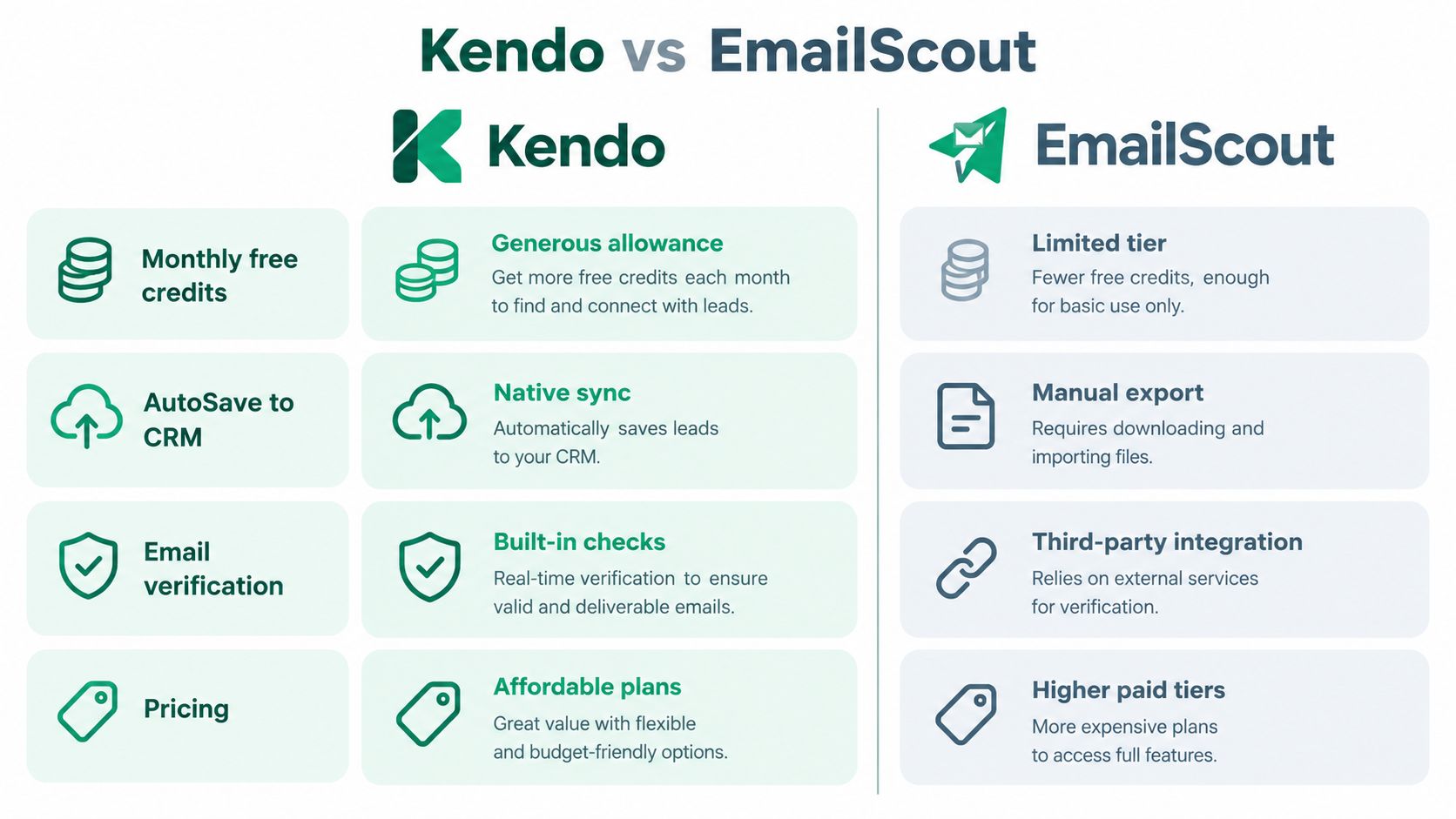
For a small team, a browser extension may be enough if someone owns deduplication and verification. For a larger sales operation, native CRM sync can reduce manual imports, but it should still preserve provenance and prevent duplicate ownership. A tool that exports quickly isn't automatically better than one that exports less often with stronger controls.
Teams comparing products can use this email-finder software guide to frame the decision around discovery method, export needs, verification, and governance. Don't accept a product claim about “verified” at face value. Ask what the status means, when it was assigned, whether catch-all results are separated, and how the system handles failed checks.
Price also needs context. A low-cost tool can become expensive when representatives spend time cleaning exports or when poor records create bounces. A higher-priced platform can be wasteful if the team only needs occasional domain lookups. Run a controlled test with representative accounts, measure the manual cleanup required, and review the permission model before committing.
Troubleshooting Common Issues
When an extension fails to find an address, start with the page rather than repeatedly clicking the button. Some pages load contact details dynamically, some restrict content behind an account, and some do not expose an address. A missing result isn't proof that the person has no business email.
Use this sequence:
- Confirm the domain is approved. Check the extension's site access settings and avoid granting broad access as a quick fix.
- Refresh the page. A recently opened tab may not have loaded the content script correctly.
- Test a known company page. This separates a page-specific issue from an account or extension problem.
- Temporarily review privacy tools. Ad blockers and script controls can interfere, but don't disable them permanently without understanding the trade-off.
- Check the account session. Sign out and back in if the extension shows stale status or refuses to save.
- Inspect the export fields. If the file downloads but appears empty, check the selected columns, file format, and browser download permissions.
Keep Chrome and the extension current, then clear cached site data only after preserving any records that haven't been exported. If a result is visible but the extension doesn't capture it, record the source manually and report the page pattern to the vendor. Avoid repeated automated attempts on restricted sites, since aggressive behavior can create account or access problems.
Best Practices for Effective Prospecting
Good prospecting begins before the lookup. Define the account criteria, target role, geography, and campaign purpose first. Then research only the pages that can support those criteria, capture the source, and review each result before it enters a sequence.
A sustainable operating rhythm looks like this:
- Start with relevance. A smaller set of well-matched decision-makers is more useful than a large collection of unrelated addresses.
- Separate stages. Discovery, verification, CRM import, suppression checks, and sending should remain visible as different steps.
- Preserve provenance. Keep the source URL and collection context so another operator can audit the record.
- Protect client data. Agencies should separate workspaces, exports, and retention decisions by customer.
- Monitor outcomes. Track bounces, objections, duplicates, and undeliverable results, then use those findings to refine collection rules.
- Present a credible sender identity. A clear name, role, company, and guide to polished email signatures can make legitimate business correspondence easier for recipients to understand.
The strongest Chrome workflow is not the one that collects the most addresses. It's the one that helps a team move from a relevant page to a traceable, reviewed, technically checked, and appropriately governed contact record without losing context.
EmailScout offers browser-based email discovery from websites, Google results, LinkedIn profiles, and company pages, with options to copy or export collected addresses and use features such as AutoSave and URL Explorer. Visit EmailScout to evaluate whether its workflow fits your prospecting, data-hygiene, and review requirements.