
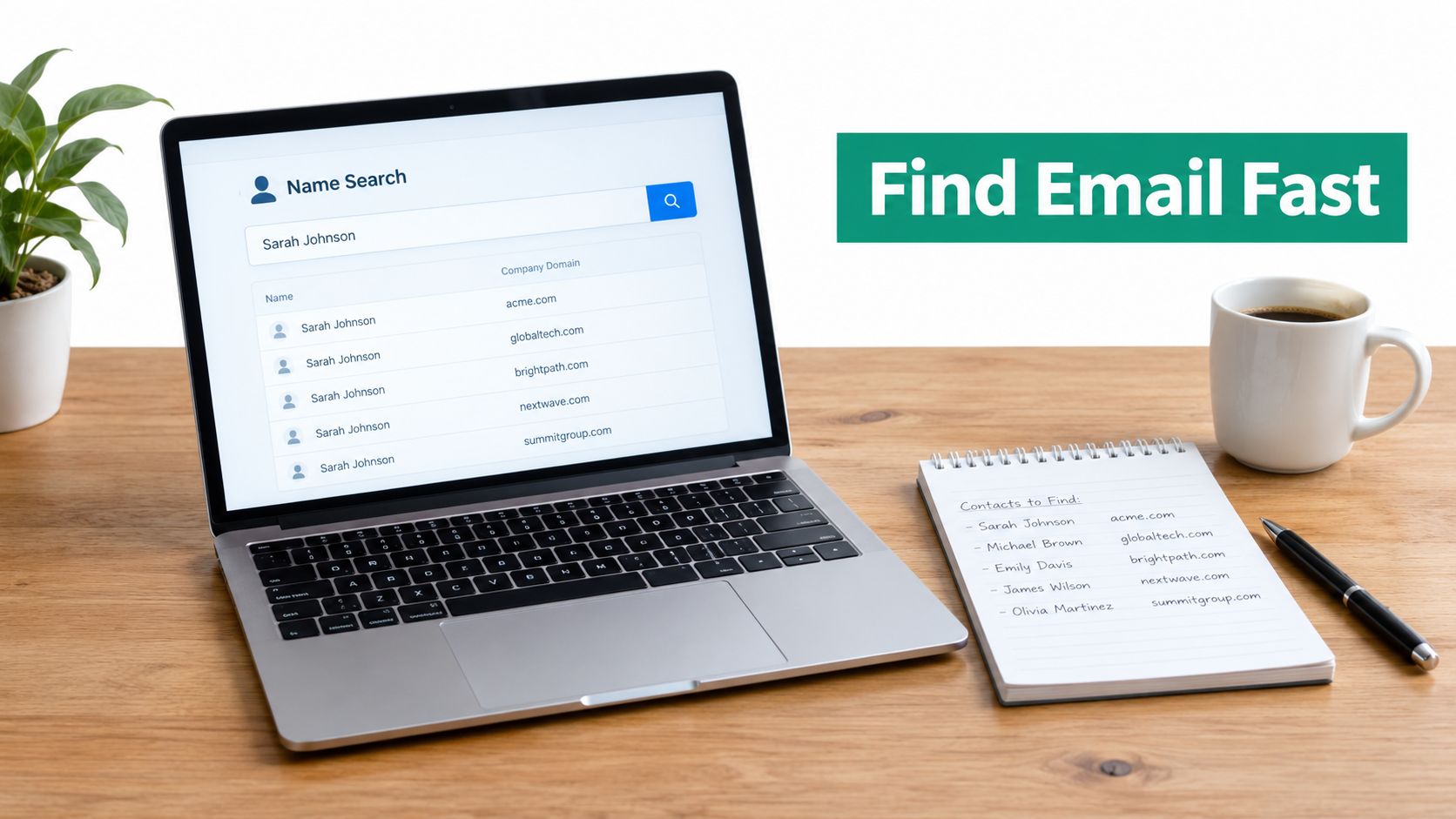
You have a prospect's name from LinkedIn, a conference attendee list, or an old CRM record. The company looks like a strong fit, but the contact page offers only a generic form, and your outreach is stuck before it starts. An email address finder by name can close that gap, but only when you treat the task as identity resolution, not magic name lookup.
The reliable workflow uses the person's full name, employer, company domain, likely address pattern, and verification. Name-only searches can produce guesses, duplicates, or addresses belonging to someone else. The practical question isn't “Can I find any email from a name?” It's “Can I match this person to a current, deliverable work inbox?”
Why Finding an Email by Name Still Matters in 2026
A name is often the first useful piece of prospect data. You might know that Maya Chen leads revenue operations at a software company, but LinkedIn messaging is crowded, conference lists rarely include direct contact details, and social profiles don't always show a professional inbox. Email remains the anchor because it supports a direct introduction, a researched follow-up, a referral request, and a record your sales team can manage.
That identity layer is enormous. Independent industry reporting estimates 4.37 billion to 4.59 billion email users worldwide between 2023 and 2025, with projections reaching about 4.73 billion by 2026 and 4.89 billion by 2027, as reported by Statista's global email usage data. Daily email volume has also grown from roughly 347 billion messages per day in 2023 to about 376.4 billion in 2025, with projections above 408 billion by 2027 from the same source.
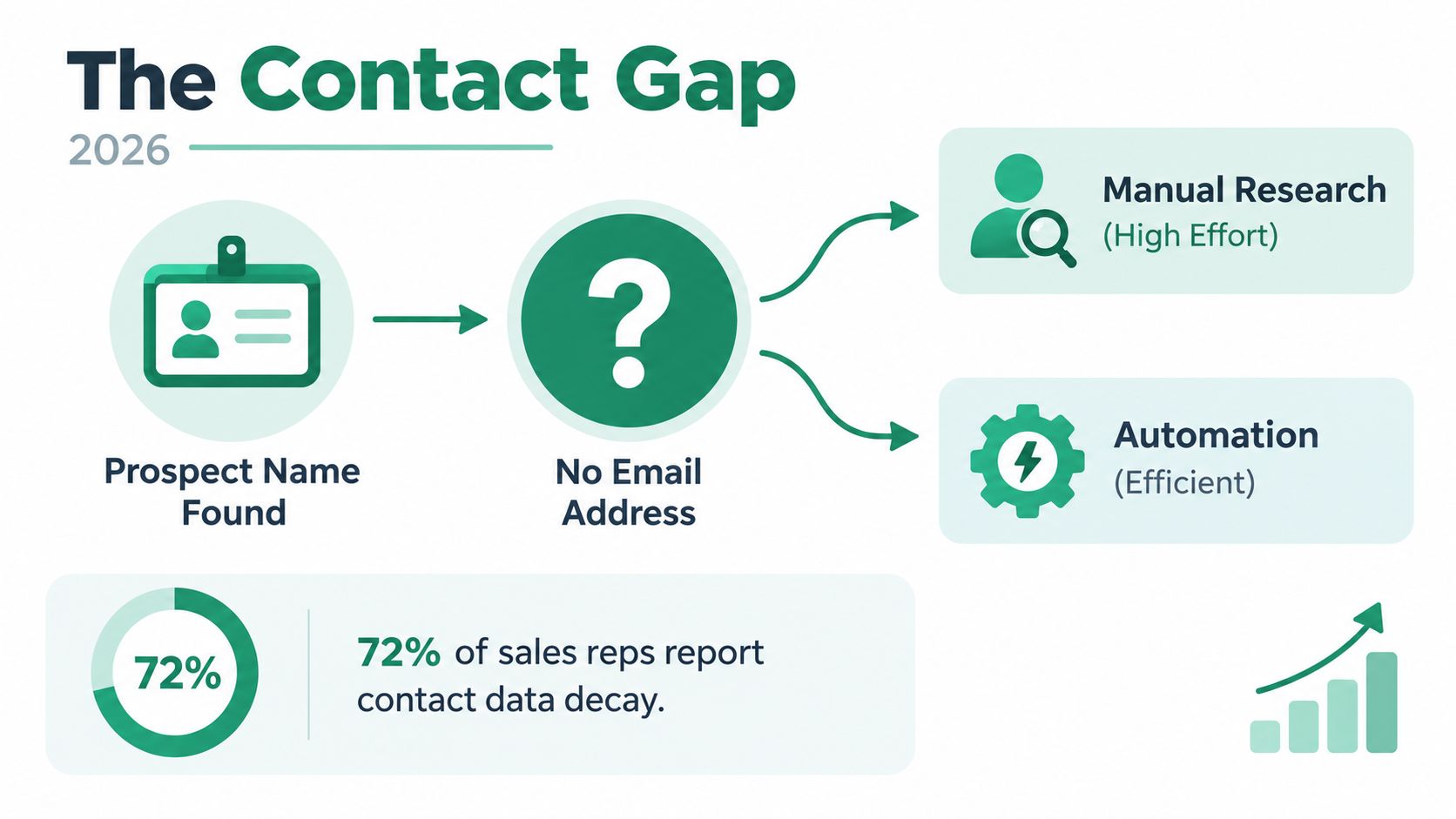
That scale explains why name-based discovery became a standard prospecting workflow. Email use grew from about 10 million users in 1997 to roughly 4.37 billion in 2023 and 4.59 billion in 2025, while the average user now has about 1.86 email accounts, according to EmailToolTester's email usage statistics. One person may have a personal inbox, a current work address, and an older business account, so matching a name to the correct employer matters.
The process works best when you gather company context first, test a likely pattern, use a finder for scale, and verify every candidate before sending. That's the difference between thoughtful outreach and a spreadsheet full of untrusted guesses. For the broader role of direct communication in prospecting, see this practical guide to why outreach is important.
Practical rule: Treat the name as an identifier, not as sufficient evidence of an email address.
What an Email Address Finder by Name Can and Cannot Do
A serious B2B finder usually can't resolve a reliable work address from a bare name alone. “Jordan Lee” may match thousands of professionals, and without an employer or domain, the tool has no dependable way to distinguish the right person from similarly named contacts. The missing company context is the key limitation.
The useful input is name plus company domain. If you know that Jordan Lee works at example.com, a finder can search public information, compare known address conventions, infer a likely format, and apply verification checks. Independent 2026 explainers put name-plus-domain accuracy at about 85% to 97%, compared with roughly 40% to 60% for bare name searches, according to Tomba's explanation of email search by name.
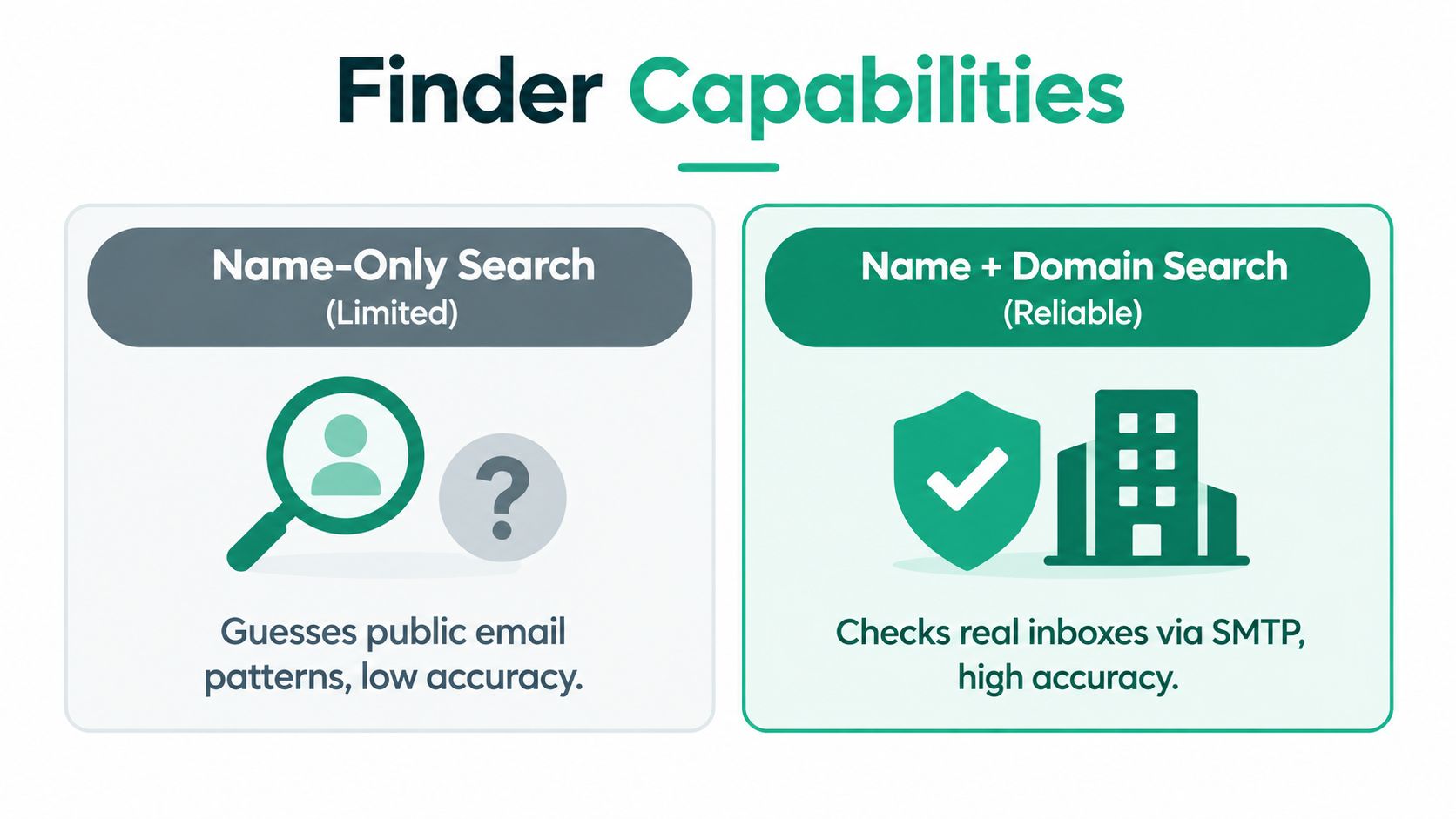
That doesn't mean a strong match is guaranteed. Very small businesses may use shared inboxes or inconsistent naming. Catch-all domains can accept messages without confirming that a specific mailbox exists. Personal-brand consultants may operate across several domains, making the employer relationship ambiguous.
Company size also changes the workflow. A 2026 benchmarking summary reports that pattern guessing alone typically covers 60% to 70% of the path to a valid address. Mid-market and enterprise domains can produce roughly 70% to 85% hit rates, and when the target firm has 100 or more employees, about three out of four names may be returned as verified addresses, according to Tomba's email finder by name benchmark.
Use those figures as operating guidance, not a promise for every record. Before searching, collect:
- Full name: Include middle initials, accents, and alternate spellings where relevant.
- Employer: Confirm the person's current company rather than relying on an old profile.
- Company domain: Separate the official website from a parent company, regional site, or campaign domain.
- Role and location: These details help resolve people with common names.
- Verification status: Keep “found,” “guessed,” and “verified deliverable” in separate fields.
If the person already exists somewhere in your systems, start by learning how to find people in your CRM before creating another record. Good list building begins with deduplication, not another search.
Manual Ways to Find an Email From a Name
Manual research is still useful because it teaches you what a tool should be checking. Suppose your fictional prospect is Elena Torres, head of partnerships at Northstar Analytics. You know her name and company, but not her inbox. Work through the evidence in order.
Start with targeted search queries
Search the full name with the company name, then add the domain when you have it. Queries such as "Elena Torres" "Northstar Analytics" or site:northstaranalytics.com "Elena Torres" can surface author pages, event bios, partner announcements, and public documents.
Search for the company domain alongside likely address fragments only after confirming the person's identity. A result showing another employee's format can reveal whether the company uses a first name, first initial, surname, or a combined format.
Inspect professional profiles and team pages
LinkedIn may confirm Elena's current role, location, and spelling. Look at the profile's contact area, the company's employee pages, speaker bios, and About pages. A profile won't always publish an email, but it can provide the context needed to reject the wrong Elena Torres.

Check the company's public footprint
Review the website's About, Contact, author, press, and newsroom pages. Conference pages and press releases may show an address or reveal how the company identifies its staff. If Northstar Analytics lists elena.torres@northstaranalytics.com in a public partner announcement, you have evidence. If it lists another employee as first.last@northstaranalytics.com, you have a pattern clue, not proof that Elena uses the same format.
Company domains often expose patterns through publicly visible staff information, but small organizations can be irregular. Don't assume one published address represents every mailbox.
Infer the pattern, then stop guessing
Common candidates include:
elena@northstaranalytics.comelena.torres@northstaranalytics.cometorres@northstaranalytics.comelenat@northstaranalytics.com
Create candidates only when the domain is confirmed and the naming convention is supported by another employee record. Then run the candidate through a verifier. Guidance on how to verify email addresses before outreach is useful here because a plausible format can still point to a nonexistent mailbox.
A guessed address is a hypothesis. It becomes a prospecting contact only after identity and deliverability checks support it.
Avoid sending test messages to every possible address. That creates unnecessary bounces and tells you little about which address belongs to the right person. Keep the manual process focused: establish the employer, identify the domain, observe the pattern, and verify the best candidate.
Finding Emails Faster With EmailScout Chrome Extension
Manual research works for a handful of contacts. It becomes tedious when you're reviewing search results, company pages, and LinkedIn profiles across a large account list. A Chrome extension can reduce repetitive copying and let you preserve the source URL alongside each discovered address.
Install EmailScout from the Chrome Web Store, sign in if prompted, and open its settings. Turn on AutoSave if you want discovered addresses stored as you browse, and enable URL Explorer when you need to inspect multiple pages connected to a domain. The extension is designed to find email addresses associated with a domain and can scan public data while comparing known company patterns.
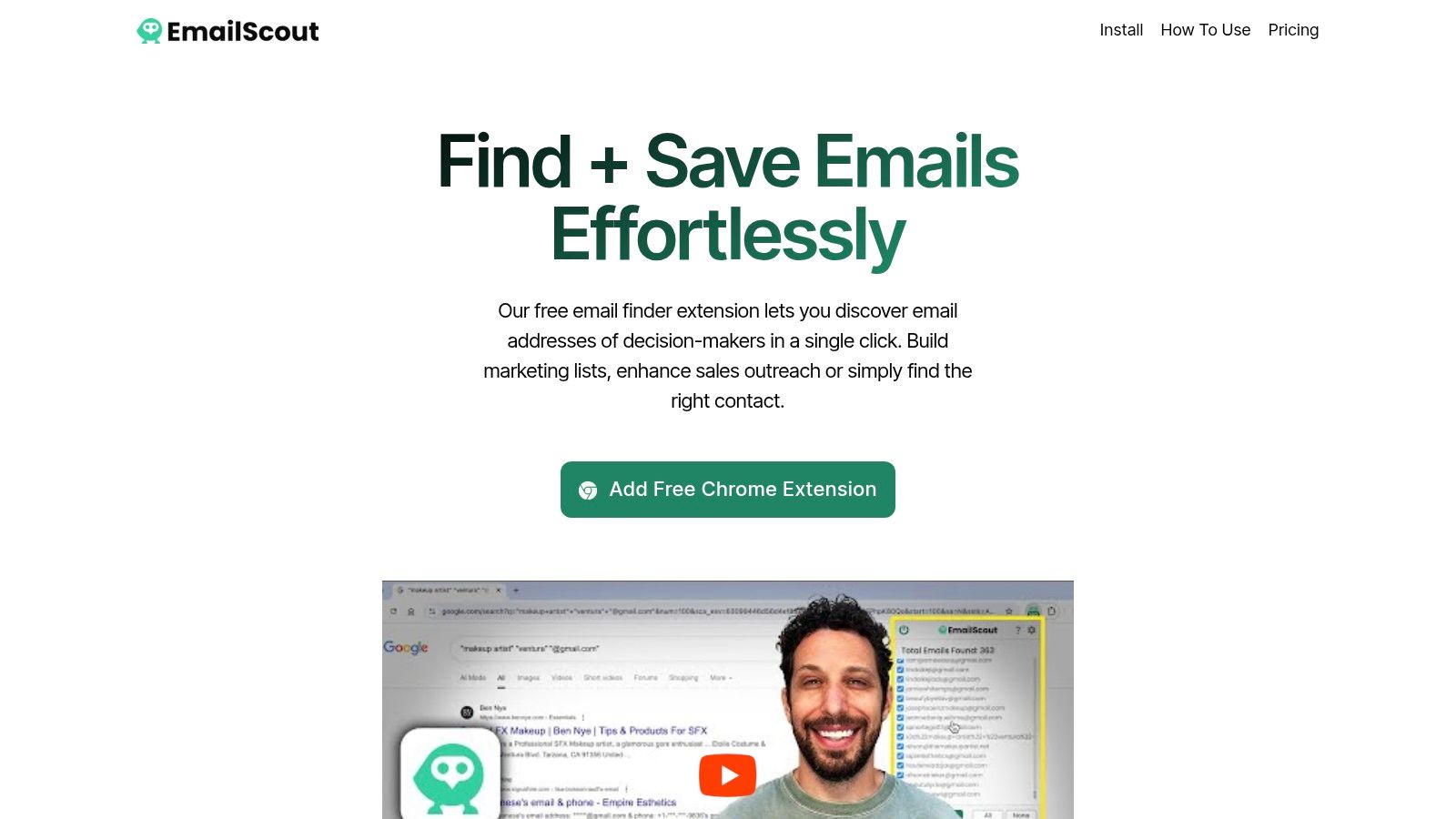
Start with a focused Google query rather than a broad search. Combine the person's name, company, role, location, and site operator. For example, search for "Elena Torres" partnerships site:northstaranalytics.com, then use the extension on relevant results. Location terms help separate people with common names, while the domain keeps the search tied to the right employer.
On a LinkedIn profile, open the extension and review the results associated with the person's company domain. The workflow is described in EmailScout's LinkedIn email finder guide. Don't treat every surfaced address as ready for outreach. Match the name, role, employer, and page context before saving the record.
For broader collection, use URL Explorer on relevant company pages. Google result pages can also be adjusted with the num=10 parameter changed to num=100 when that option is available, allowing more results to load for review. Larger result sets still require filtering, because search volume doesn't equal identity accuracy.
Export the selected records to CSV and preserve useful fields:
- Full name and job title
- Company and domain
- Discovered email
- Source URL
- Verification status
- Research date
EmailScout offers free and premium plans, and its free option can support initial testing before a team decides whether the broader workflow fits its list-building needs. The tool belongs in the discovery stage. Verification and responsible outreach still determine whether the list is usable.
How to Verify Emails and Avoid Costly Bounces
Discovery and deliverability are separate operations. An address can look correct, follow the company's pattern, and still be invalid because the employee changed jobs, the mailbox was removed, or the domain handles unknown recipients through a catch-all configuration.
The risk is measurable. A 2026 deliverability benchmark reported that 12.3% of verified B2B addresses were invalid, meaning roughly one in eight messages could bounce immediately without additional cleaning, according to BounceZero's 2026 deliverability benchmarks. Verification isn't a cosmetic label. It protects the sending system from avoidable failures.
A separate verification study cited in the same benchmark source found that cleaning reduced total bounce rate from 11.5% to 3.0%, with hard bounces falling from 8.4% to 1.2% and soft bounces declining from 3.1% to 1.8%. Those figures explain why “found” and “verified deliverable” belong in different CRM fields.
Use a simple maintenance routine:
- Validate immediately: Send every newly discovered candidate through an email verification service before adding it to an active campaign.
- Separate outcomes: Mark addresses as valid, invalid, risky, unknown, or catch-all rather than forcing every record into a yes-or-no category.
- Suppress hard invalids: Don't retry addresses that verification identifies as nonexistent or clearly undeliverable.
- Review risky domains: Handle catch-all results conservatively and prioritize other contacts at the same company when possible.
- Re-verify before major sends: Job changes, domain migrations, and stale records reduce list quality over time.
You can also use EmailScout's email verification guidance to keep discovery and validation as distinct steps. Personalization matters, but it can't rescue an address that doesn't exist.
Your Next Outreach Starts With the Right Email
The fastest repeatable process is straightforward:
- Identify the person: Confirm the full name, role, employer, and location.
- Confirm the domain: Use the company's official website and check for parent or regional domains.
- Research quickly: Search public pages and inspect the company's visible address pattern.
- Scale carefully: Use a browser-based finder when manual research starts consuming the day.
- Verify before sending: Keep unverified candidates out of active sequences.
- Personalize the message: Connect the reason for contact to the person's role and company.
For a small company, manual research may uncover the right context faster than automation. For a larger firm, a domain-based workflow usually gives you stronger pattern evidence and more repeatable list building. When the address is ready, pair it with a relevant subject line using resources such as Voicedial.ai's best email subject lines for sales, then respect applicable privacy, consent, and outreach rules.
The key shift is simple: a name-only search is a starting point, not a complete method. Name plus company domain gives you a defensible match, and verification tells you whether that match is safe to use.
EmailScout helps you discover domain-associated work emails while you research Google results, company pages, and LinkedIn profiles, with AutoSave, URL Explorer, CSV export, and free and premium plan options. Visit EmailScout to test a name-plus-domain workflow on your next prospect list, then verify the results before outreach.