

Chrome extensions can transform routine sales, marketing, and biz-dev tasks into powerful automated workflows. From capturing leads on the fly to managing dozens of tabs without losing context, the right toolkit helps outreach teams do more with less effort.
In this guide we’ve hand-picked the 12 best chrome extensions for productivity. Each tool includes real-world use cases, honest pros and cons, pricing details, integration tips, and direct links. You’ll learn to skip trial and error by choosing platforms proven in sales, marketing, and biz-dev workflows.
- Automate cold email campaigns with EmailScout for faster follow ups
- Organize research and assets across campaigns with tab managers
- Secure and auto-fill credentials in one click
- Record quick video demos for async collaboration
- Pin important tabs with Workona for focused project sessions
Every entry includes screenshots and direct links for quick access. We also highlight practical implementation notes so you can:
- Identify extensions that fit your workflow
- Balance free features versus paid plans
- Integrate tools into CRMs and project boards
Whether you’re a sales professional chasing quotas, a marketer juggling campaigns, or a founder flying solo, this list will point you to the best chrome extensions for productivity. Let’s dive in and supercharge your outreach.
1. EmailScout
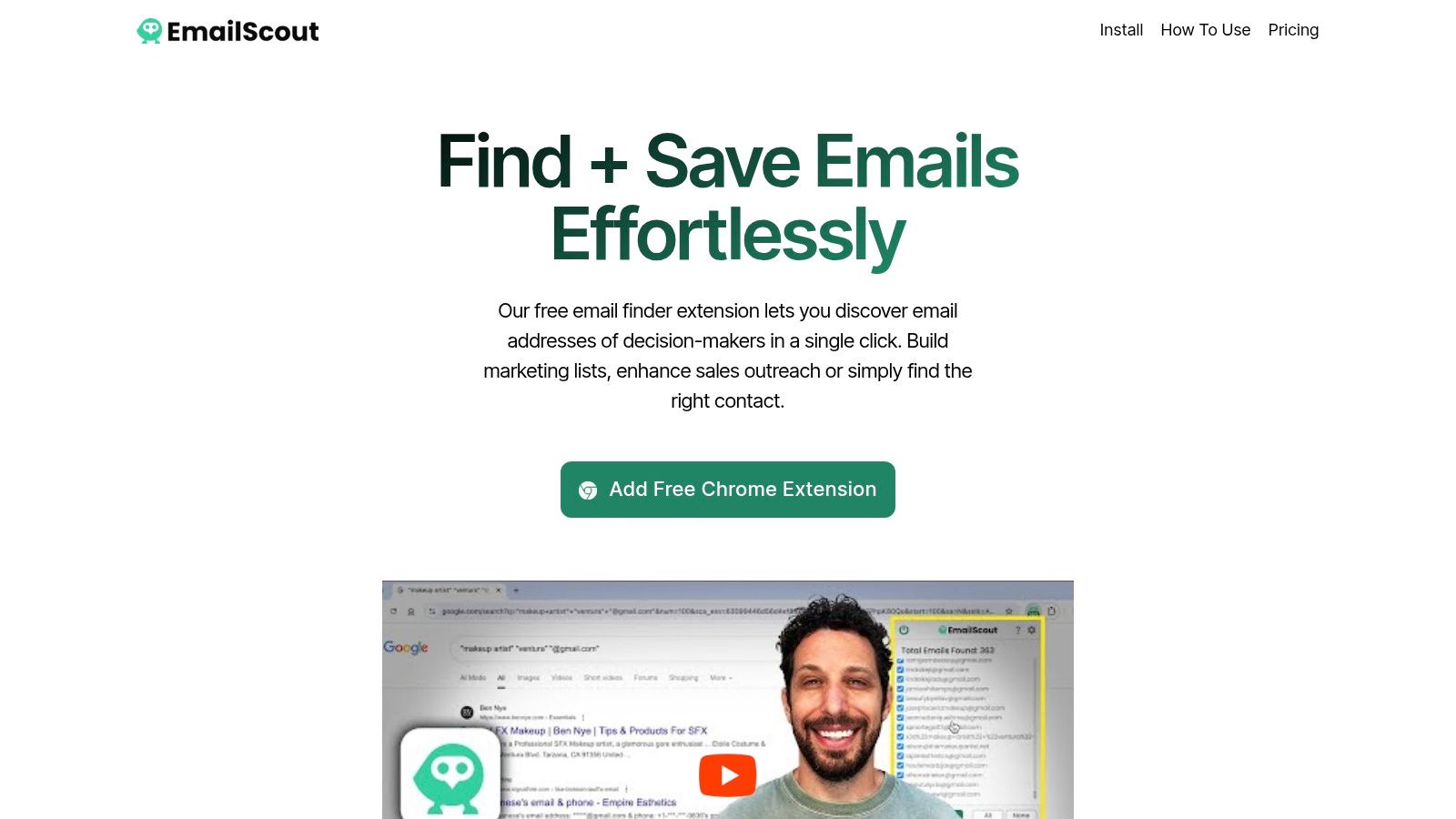
EmailScout is a lightweight, one-click Chrome extension that turns any website or Google search into a lead generation source for sales teams, marketers, and entrepreneurs. Its Zero-config setup and intuitive interface position it as one of the best chrome extensions for productivity in outreach workflows. Its minimal learning curve and responsive support team reduce onboarding friction. Support is available via live chat or email.
Key Features
- AutoSave background captures emails as you browse
- URL Explorer scans batches of URLs (up to 1,500)
- One-click extraction directly from page source or search results
- Export options: CSV or TXT with unlimited free-tier exports
Typical Use Cases
- Building targeted B2B contact lists during market research
- Automating bulk lead collection for cold email campaigns
Pricing & Plans
| Feature | Free Tier | Premium ($9/mo) |
|---|---|---|
| URL Explorer | Manual | Bulk up to 1,500 URLs |
| AutoSave | Not available | Background capture |
| Monthly Exports | Unlimited | 5,000 emails |
Pros and Cons
- Pros
- Free, unlimited email finding and exports
- Easy setup, click-and-go interface
- Affordable scaling to 1M emails per month
- Cons
- No built-in verification; results depend on public data
- Users must manage GDPR and CAN-SPAM compliance
Quick Tip
Pin the extension to your toolbar and activate AutoSave before hitting industry directories to streamline lead capture.
Learn more about EmailScout on emailscout.io
2. Chrome Web Store – Productivity Collection
The Chrome Web Store is Google’s official marketplace for discovering and installing browser add-ons. Its “Your productivity toolkit” collection features top-rated extensions vetted by Google’s editorial team. Automatic updates and detailed permissions make it a trusted hub for sales and marketing professionals.
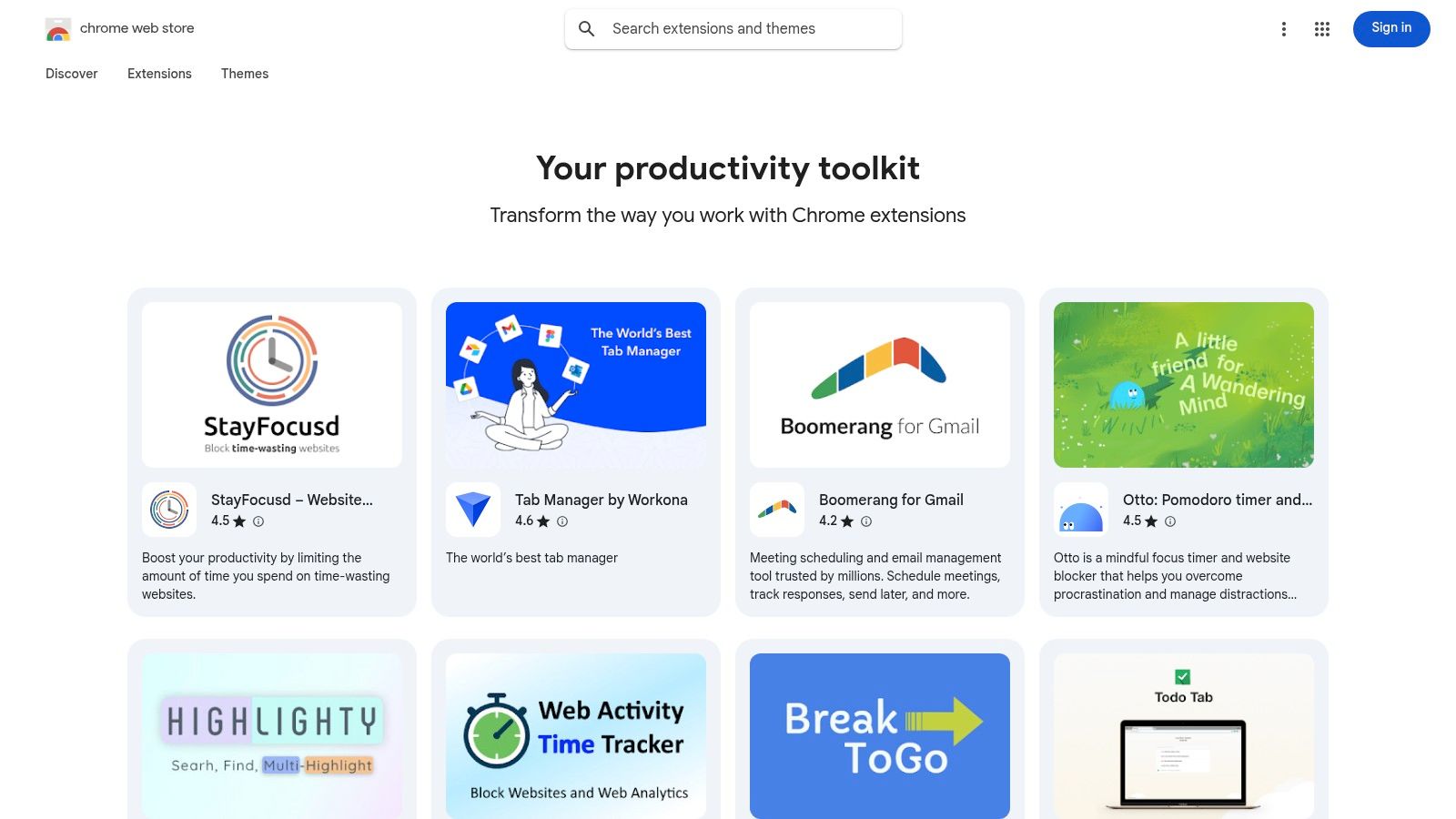
Navigating the productivity collection gives real user reviews, install counts, and enterprise controls. A Google account and Chrome browser suffice for access. Pricing is free for most extensions; some premium tools offer paid tiers.
Key Features
- One-click install to Chrome with automatic updates
- Curated productivity collections edited by Google’s team
- Granular permissions and user rating transparency
- Enterprise controls for managed users in Chrome Enterprise
Pricing and Access
- Free to use for most extensions; paid tiers for advanced features
- Accessible via Chrome browser and Google account
- Enterprise licensing required for managed controls
Pros and Cons
Pros
- Safest direct source for Chrome extensions
- Automatic updates and permission prompts
Cons
- Overwhelming selection may hinder discovery
- Extensions can change ownership over time
Quick Tip
Use starred collections to save high-value extensions and monitor update notes for best performance.
Learn more about Chrome Web Store – Productivity Collection on emailscout.io.
3. Product Hunt – Chrome Extensions Category
Product Hunt is a product-discovery platform with a dedicated Chrome Extensions category that surfaces recent launches and top-reviewed productivity tools. Community rankings and discussion threads help sales and marketing teams evaluate emerging extensions before they hit mainstream lists.
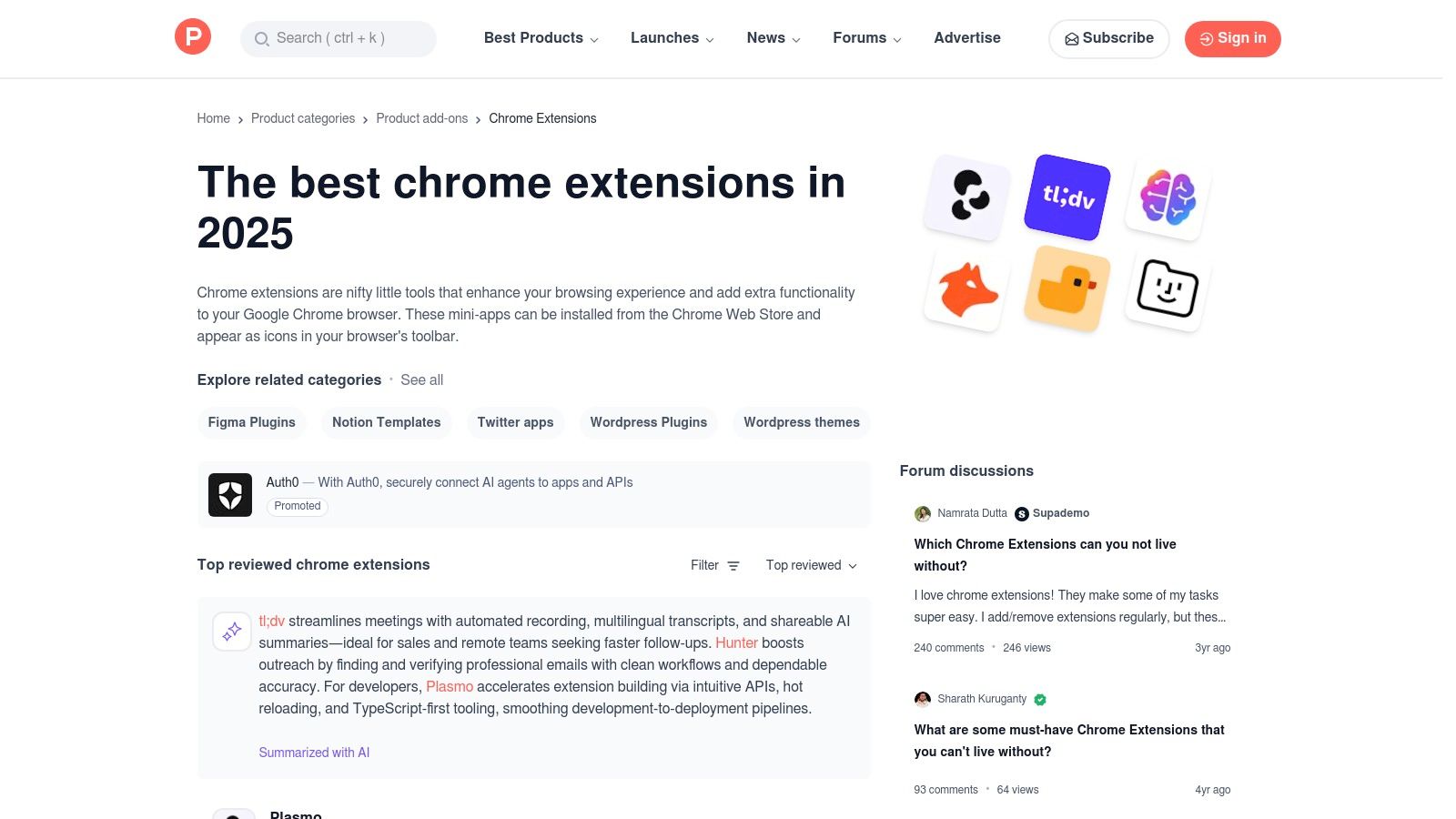
Browsing this category lets you filter by “Top reviewed” and “Newest” to find cutting-edge tools. Each listing links directly to vendor sites and the Chrome Web Store, while user comments and upvotes reveal real usage insights.
Key Features
- Community upvotes and aggregate review scores
- Filters for Top reviewed, Trending, and New launches
- Direct links to Chrome Web Store and developer websites
- Comment threads for hands-on feedback and use cases
Pricing and Access
- Completely free to browse and use
- Requires a Product Hunt account for upvoting and commenting
- No premium tiers; extensions may include paid features separately
Pros and Cons
Pros
- Great for discovering early-stage, innovative tools
- Honest community feedback highlights strengths and pain points
Cons
- Quality varies; some launches may be experimental
- Fewer enterprise controls compared to official marketplaces
Quick Tip
Follow the Chrome Extensions category and enable email alerts to spot high-potential productivity tools before competitors do.
Learn more on Product Hunt – Chrome Extensions Category.
4. G2 – Best Chrome Extensions Roundup
G2 is a leading B2B review and editorial platform that curates top Chrome extensions by productivity use case. Its “Best Chrome Extensions Roundup” offers contextual summaries, buyer guidance, and real user ratings to help sales, marketing, and business development pros discover tools that match their workflows.

The roundup groups extensions by function – task management, ad-blocking, email automation – with pros, cons, and installation links. G2’s verified reviews and scoring system provide honest insights, while detailed buyer guides explain which features matter most for your team’s goals.
Key Features
- Curated lists organized by productivity use cases
- In-depth editorial summaries and buyer guidance
- Verified user reviews with star ratings and comments
- Direct links to Chrome Web Store for each extension
- Comparison tables highlighting feature differences
Pricing and Access
- Free access to all articles and roundups
- No account required for browsing reviews
- Installations occur via Chrome Web Store links
Pros and Cons
Pros
- Trusted community reviews for workplace adoption
- Clear buyer guidance streamlines decision making
- Easy primer for newcomers to extension ecosystems
Cons
- Not a direct storefront – redirects to Chrome Web Store
- May not cover niche or very new extensions
Quick Tip
Bookmark G2’s roundup and subscribe to update alerts so you never miss newly published productivity extension reviews.
Learn more about G2 – Best Chrome Extensions Roundup on G2.
5. Zapier Blog – “Best Productivity Extensions for Chrome”
Zapier’s annual guide to the best chrome extensions for productivity offers a vendor-neutral, workflow-focused roundup of proven tools. It highlights clear “best for” labels, up-to-date pricing snapshots, and direct links to official extension pages, making it ideal for sales professionals and digital marketers.
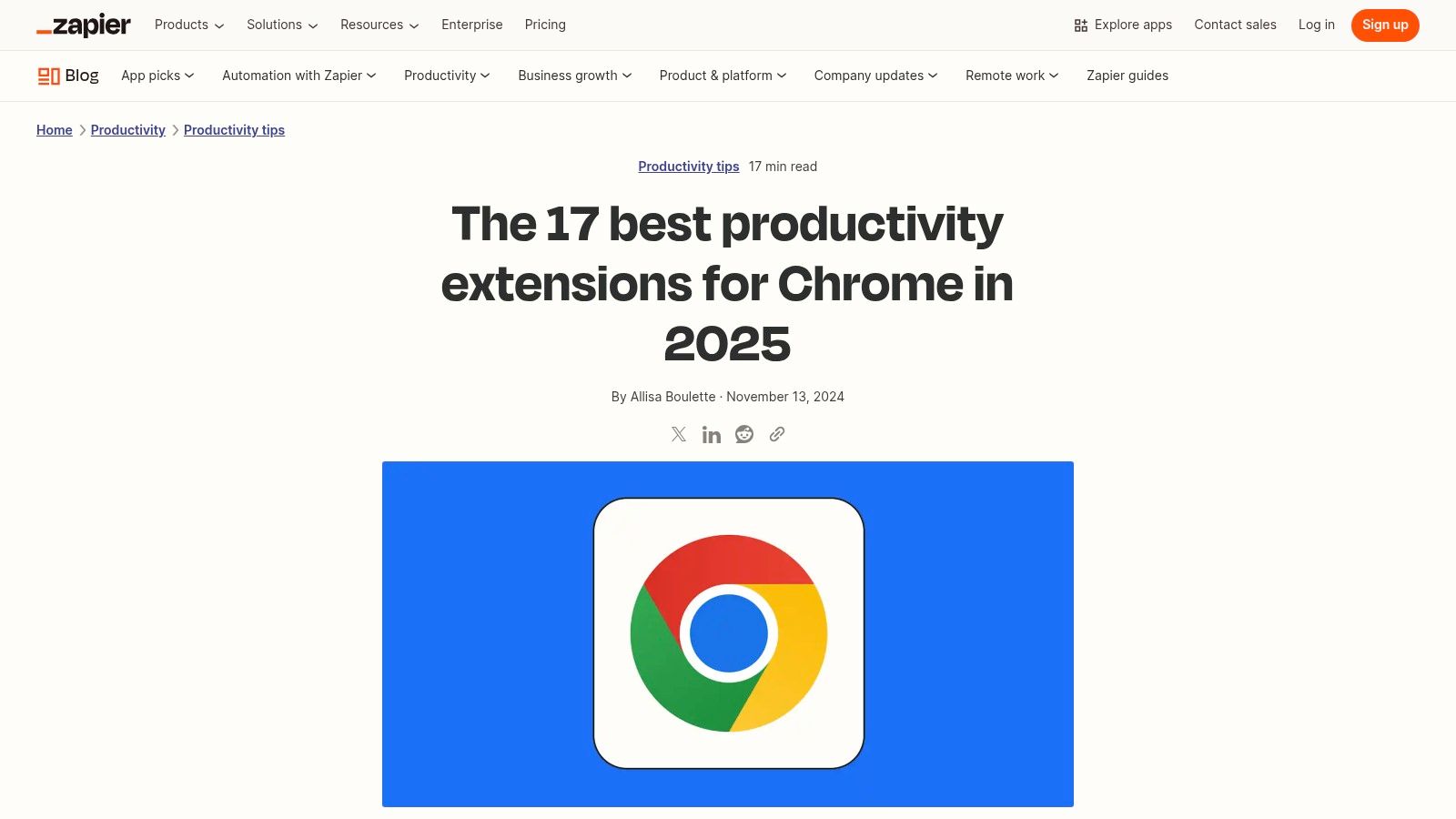
Each entry is organized by use case, from task management to ad-blocking, with annual refreshes that keep recommendations current. No login or subscription is required to access the full guide, and readers can click through to vendors’ pages for detailed feature and pricing information.
Key Features
- “Best for” labels categorizing each extension by workflow need
- Annual update cycle with fresh insights on new releases
- Pricing callouts for popular free and paid tools
- Direct links to official extension pages for quick install
Pricing and Access
- Free to read on Zapier Blog, no account needed
- Vendor pricing varies; links direct to latest plans
- Bookmark or subscribe to RSS feed for update alerts
Pros and Cons
Pros
- Credible, vendor-neutral editorial perspective
- Workflow-focused recommendations tailored to roles
Cons
- Not exhaustive; prioritizes widely used tools
- Pricing and features may change between updates
Quick Tip
Subscribe to Zapier’s RSS feed or email alerts to catch new extension reviews as they publish each year.
Learn more about Zapier Blog – “Best Productivity Extensions for Chrome” on emailscout.io.
6. Android Police – “Essential Chrome Productivity Extensions”
Android Police is a trusted tech publication delivering hands-on picks for the best chrome extensions for productivity with practical usage notes and real world tips. You get clear, tested recommendations tailored to both desktop and mobile Chromebook users.

Navigating this curated guide links directly to official listings. Each extension is tested in plain English with performance observations on page load, resource use, and UI. Free access, no sign-up required, works in any Chrome or Chromium based browser.
Key Features
- Practical usage notes based on hands-on testing
- Mobile and Chromebook perspective for on-the-go workflows
- Direct links to Chrome Web Store entries
- Plain-English explanations of setup and best practices
Pricing and Access
- Completely free to read and implement
- No account or subscription needed
- Compatible with Chrome, Edge, Brave, and other Chromium browsers
Pros and Cons
Pros
- Real-world performance insights
- Advice on when each tool shines on mobile or desktop
Cons
- Selections may update over time
- Not a full extension marketplace
Quick Tip
Bookmark key extension notes as a cheat sheet, then test alongside your cold email and outreach tools for smooth integration.
Learn more about Android Police – “Essential Chrome Productivity Extensions” on Android Police.
7. SlashGear – “Best Chrome Extensions to Boost Productivity”
SlashGear curates concise collections of leading Chrome add-ons for productivity, perfect for sales reps and marketers needing a quick shortlist of high-impact tools. Its editorial picks include top-rated options with direct install links and brief pros for swift decision making. SlashGear’s interface is minimalist and easy to scan on the go, helping busy entrepreneurs find tools in seconds.

Key Features
- Short lists of popular extensions with clear pros and pricing context
- Direct links to Chrome Web Store for one-click install
- Editor notes on use cases for sales, marketing, ecommerce
- Mobile-friendly summaries optimized for quick reading
- Regular updates reflecting newest and top-rated tools
Pricing and Access
- Free to browse and read on SlashGear
- Extensions may offer free or paid tiers on the Web Store
- No registration required to access lists
- Compatible with any desktop or mobile Chrome browser
- Accessible worldwide without geo restrictions
Pros and Cons
Pros
- Fast insight into best chrome extensions for productivity
- Clear pricing and usage takeaways
- Editorial curation reduces decision fatigue
Cons
- Not a purchase portal – must click through to install
- Editorial bias may skip emerging niche tools
Quick Tip
Bookmark the SlashGear list and enable Chrome sync to keep your productivity toolkit consistent across all devices.
Learn more on SlashGear: https://www.slashgear.com/1621931/best-chrome-extensions-productivity-boost/
8. The Keyword (Google Blog) – “5 Chrome extensions to increase productivity”
The Keyword is Google’s official blog highlighting a select group of Chrome extensions that streamline everyday workflows. Each post offers detailed examples of how to integrate tools like tab managers or grammar checkers directly into your browser.
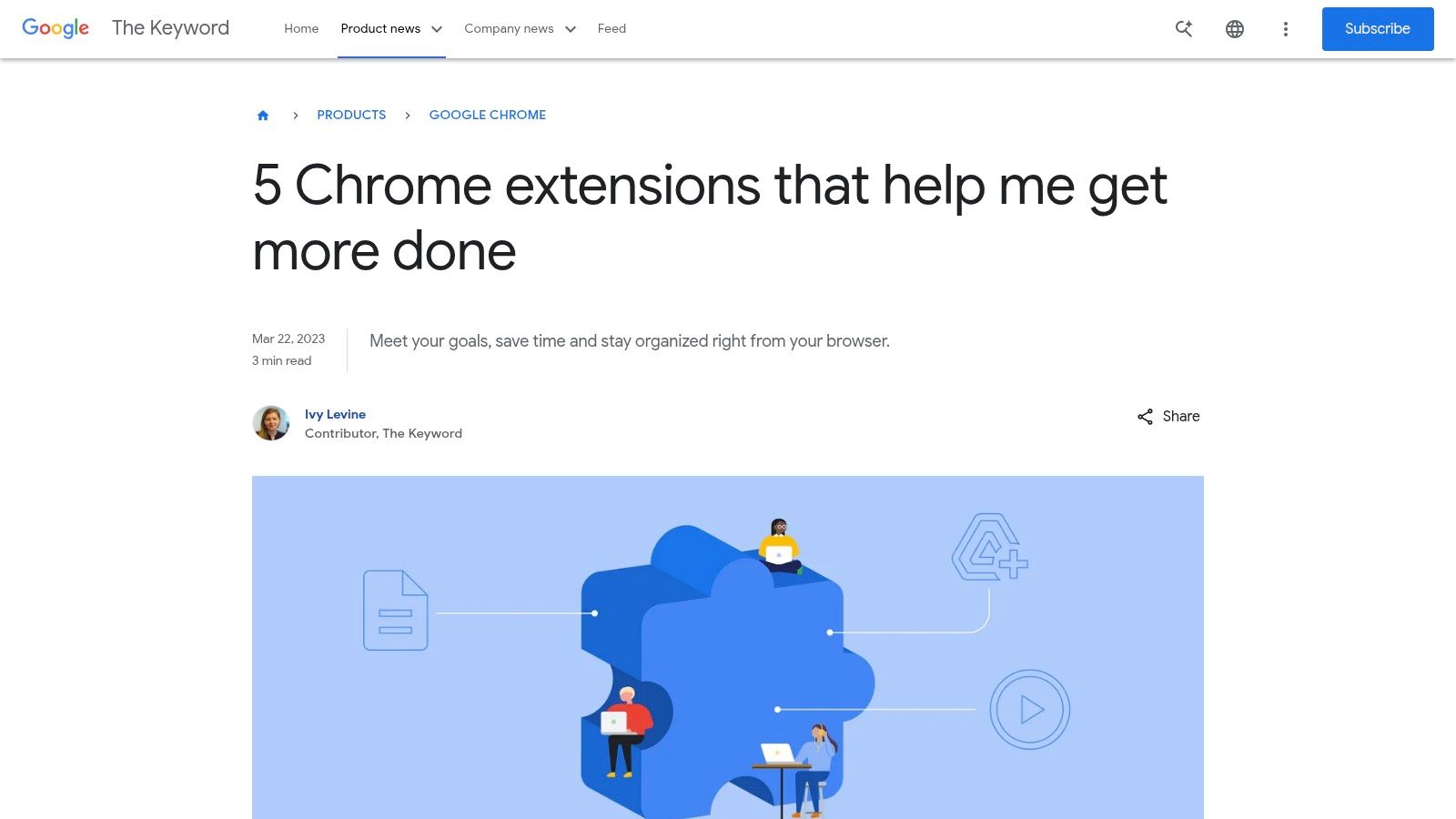
With clear screenshots and direct links you can install recommended extensions in seconds. Posts include real world scenarios such as using a screenshot tool for sales demos or a time tracker for freelance billing. No third party marketing fluff, just hands on advice that aligns with Chrome features.
Key Features
- Official curation by Google’s editorial team
- Practical use case scenarios for each extension
- Direct links with install and permission details
- In-post screenshots showing real interface steps
Pricing and Access
- Free to read with no login required
- Extensions often free or freemium via Chrome Web Store
- Requires Chrome browser for direct install
Pros and Cons
Pros
- Trusted source with deep UX insights
- Examples tailored to common sales and marketing tasks
Cons
- Limited to five extensions per post
- Not a marketplace for paid tier tools
Quick Tip
Subscribe to The Keyword RSS feed to catch new extension roundups as soon as they publish.
Learn more about The Keyword (Google Blog) – “5 Chrome extensions to increase productivity” on The Keyword.
9. Workona – Tab Manager & Workspaces (official site)
Workona is the official site for a leading tab and workspace manager with a Chrome extension that helps sales and marketing teams keep projects organized. With its intuitive interface users can group tabs into workspaces, suspend idle tabs to reduce memory usage, and search across sessions from any new tab.
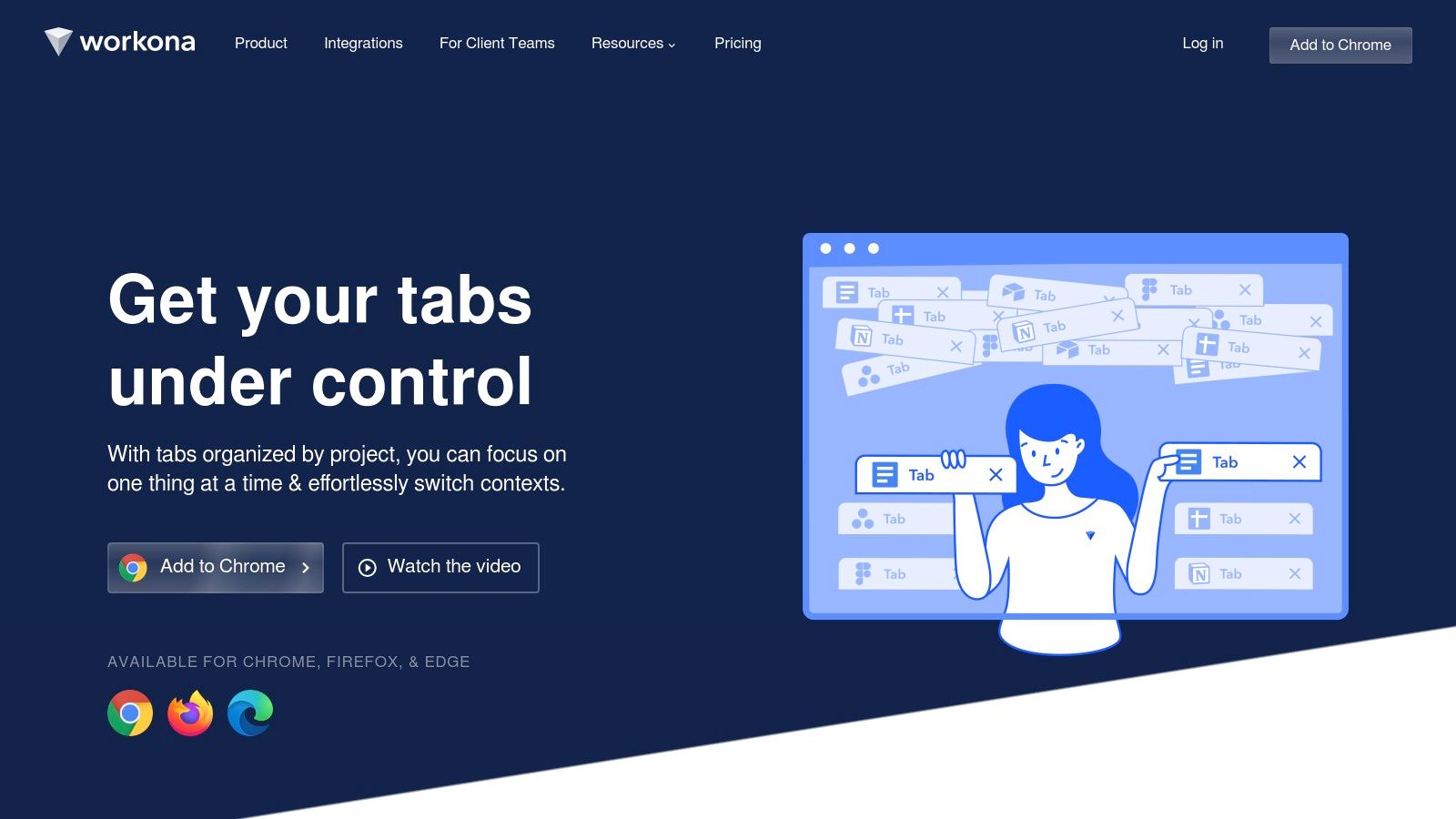
On the Workona platform teams can share workspaces, assign tasks, and sync context across devices. Its powerful search engine surfaces open tabs, pinned resources, and saved projects in seconds. A clean dashboard offers quick access to current workflows without clutter.
Key Features
- Spaces and workspaces for project-based tab organization
- Tab suspension to free up RAM and speed up Chrome
- Cross-tab search and new-tab integration for rapid retrieval
- Collaboration options for shared team workspaces
Pricing and Access
- Free plan includes 10 workspaces and up to 20 tabs synced
- Paid plans start at $10 per user per month for unlimited workspaces
- Requires Chrome browser and a free Workona account
Pros and Cons
Pros
- Noticeable performance and focus gains for heavy tab users
- Business-friendly features enabling team collaboration
Cons
- Advanced collaboration features are locked behind a paid plan
- Some users may face a learning curve with complex workspace setups
Quick Tip
Pin your most critical workspaces to the sidebar and use custom labels to switch contexts quickly between client outreach and content research.
Learn more about Workona – Tab Manager & Workspaces on workona.com.
10. Todoist – Official Plans (Todoist for Chrome extension)
Todoist’s official pricing page outlines everything you need to maximize the Todoist for Chrome extension, a top-rated task manager that captures to-dos on any webpage and syncs seamlessly across devices. You can compare plan levels to unlock features like labels, filters, and project templates.
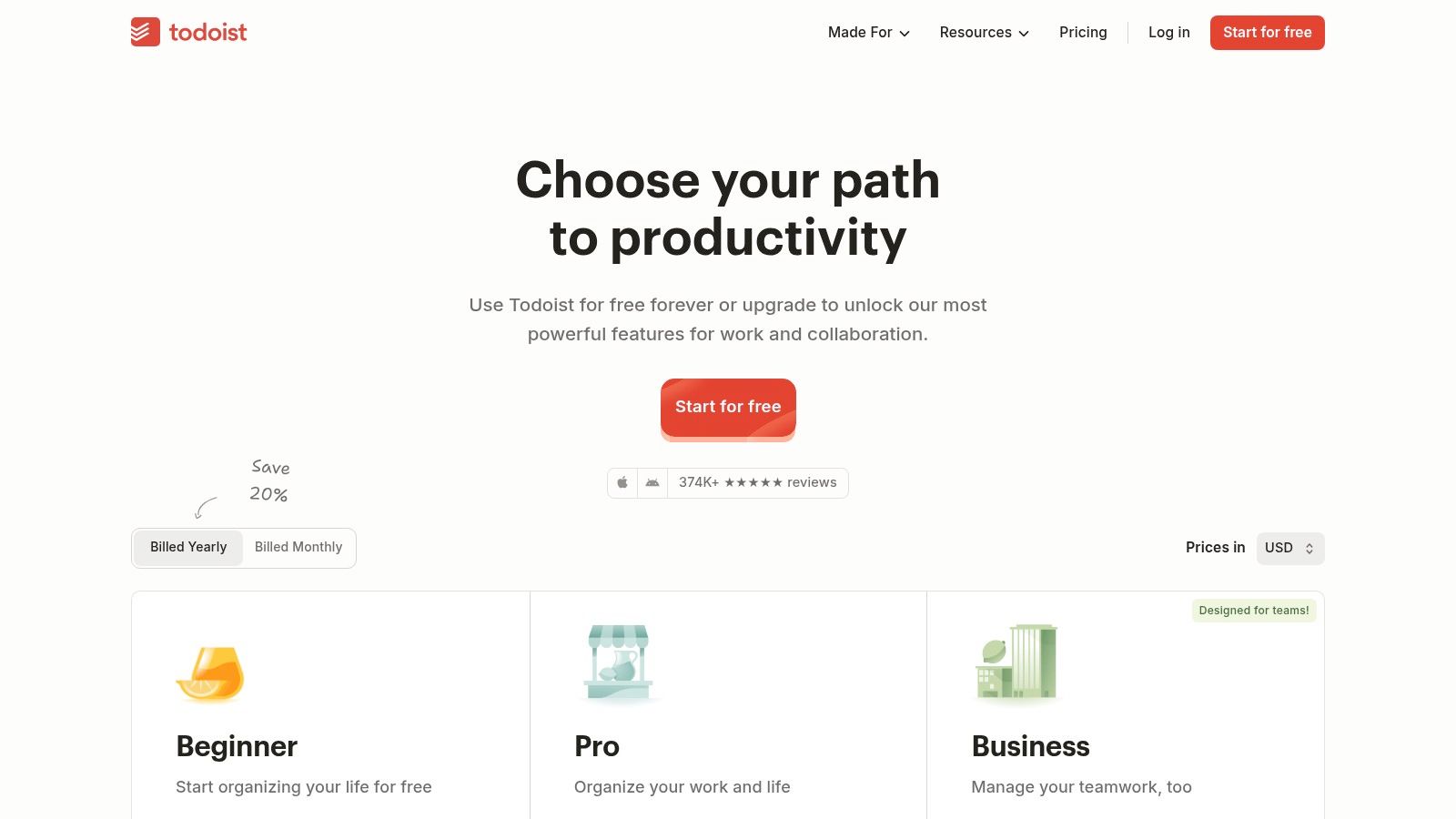
Browsing the pricing table presents side-by-side comparisons of the Free, Premium, and Business tiers, with clear notes on user limits. A Todoist account and Chrome installation are all you need to get started and adjust your plan at any time.
Key Features
- Quick-add tasks from web pages or email with a single click
- Labels, filters, priorities, and project sections for granular organization
- Real-time cross-platform sync with desktop, mobile, and calendar apps
- Integration with tools like Google Calendar, Slack, and Zapier
Pricing and Access
- Free plan with core task creation and basic labels
- Premium starts at $4 per user per month billed annually
- Business plan with team administration, projects, and priority support
- Requires registration on Todoist and Chrome browser
Pros and Cons
Pros
- Polished interface optimized for both solo users and teams
- Extensive integration ecosystem boosts productivity
Cons - Key power features such as reminders require paid tiers
- Pricing tiers and renewal terms may change without notice
Quick Tip
Enable keyboard shortcuts (Ctrl+Shift+A) to add tasks instantly from any tab.
Learn more about Todoist – Official Plans on Todoist Pricing.
11. 1Password – Official Pricing (Chrome extension included)
The 1Password pricing page lays out subscription tiers and features for its award-winning password manager with a Chrome extension included. Users get autofill for passwords, passkeys, and 2FA codes alongside secure item storage and cross-device sync. This resource centralizes details to help teams and individuals boost productivity by speeding logins and credential management.
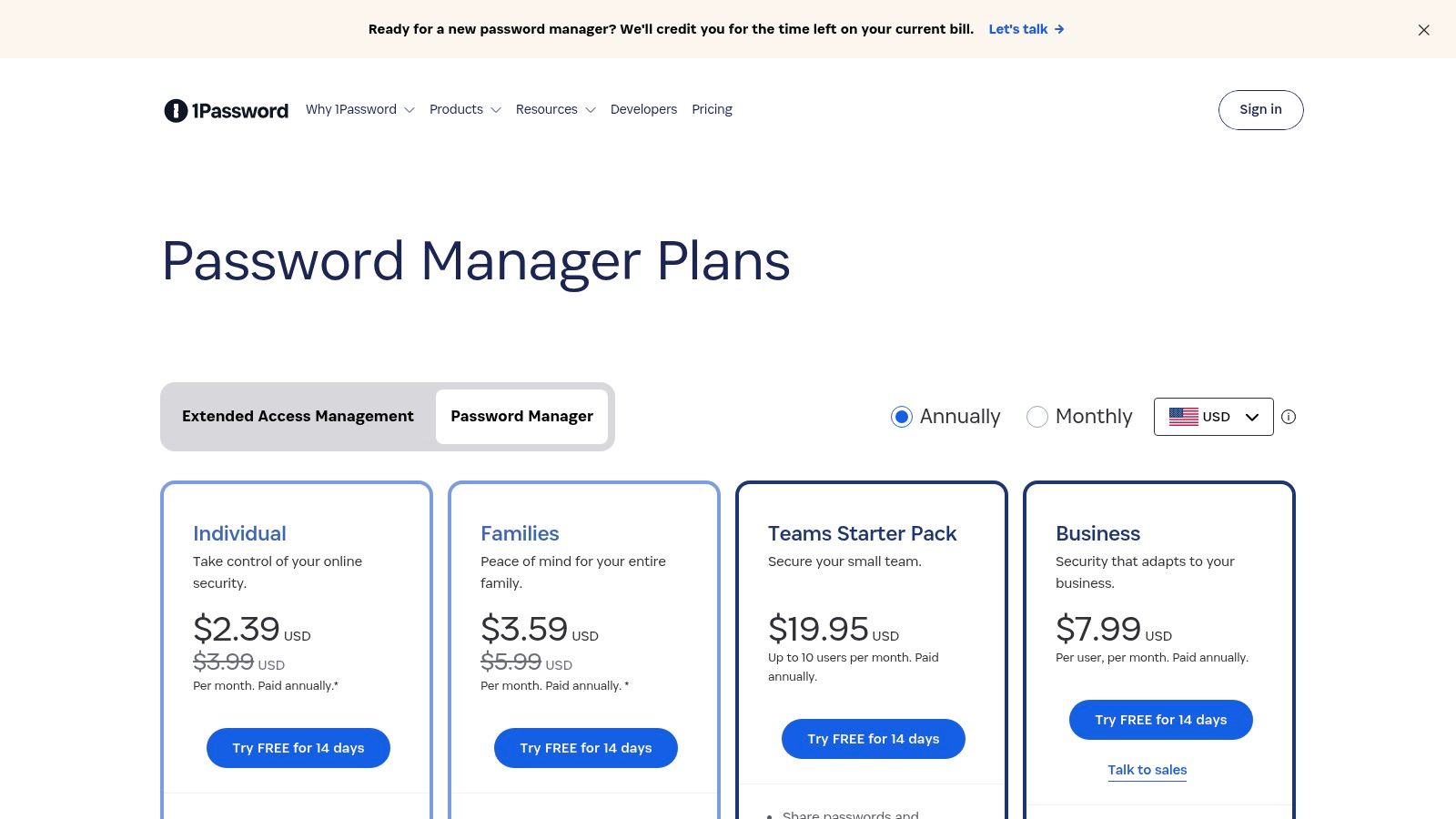
Browsing plans on 1Password.com is intuitive; each tier lists user seats, shared vault options, and enterprise controls. Clear comparisons help decision makers evaluate cost against features like automated security alerts, dedicated support, and custom role assignments. Its polished interface and responsive customer service set it apart from open-source alternatives.
Key Features
- Autofill for passwords, passkeys, and 2FA codes
- Cross-device sync and shared vaults for teams and families
- Security alerts (Watchtower) for weak or compromised credentials
Pricing and Access
- Subscription plans start at $2.99 per user per month (billed annually)
- Team and Business tiers include activity logs and custom roles
- Chrome extension free with any paid plan
Pros and Cons
Pros
- Highly regarded security model and independent audits
- Streamlines daily logins and account switching
Cons
- Subscription-based pricing, no free open-source option
- Exact pricing varies by plan and region—confirm at checkout
Quick Tip
Enable Watchtower notifications in browser settings to receive real-time alerts on compromised credentials.
Learn more about 1Password – Official Pricing on 1Password.
12. Loom – Official Pricing (Chrome recorder for async collaboration)
Loom’s pricing page offers transparent subscription layers for its Chrome recorder, enabling users to assess which plan meets their async video messaging needs. From single-click screen captures to AI summarization, it breaks down feature access by tier.
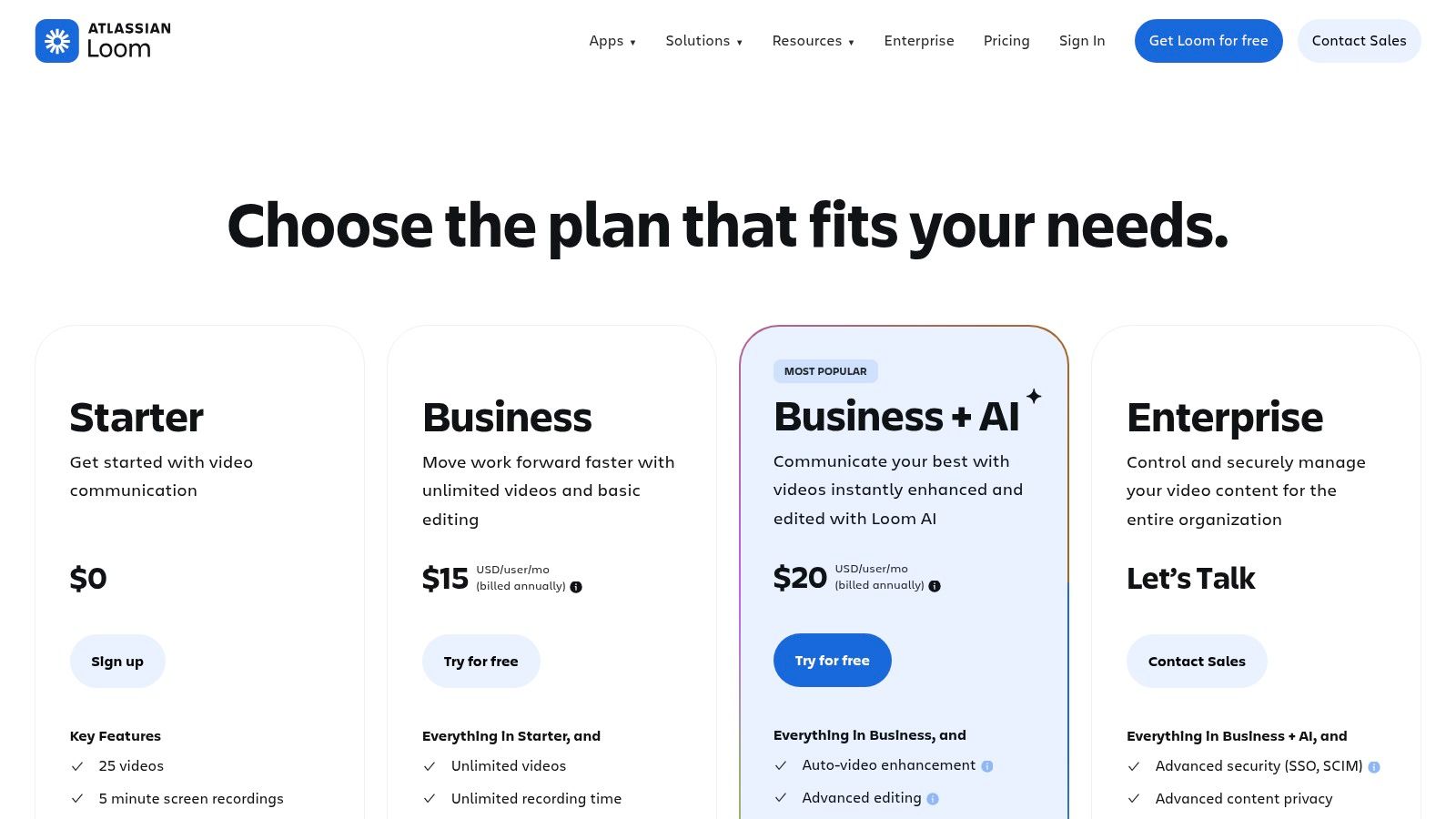
Navigating loom.com/pricing, you can compare Free, Business, and Enterprise plans, review team management tools, and upgrade within the browser. The intuitive interface and clear feature matrix ensure sales and marketing teams invest in relevant capabilities.
Key Features
- One-click screen, camera, and audio capture directly in Chrome
- Auto-generated titles, summaries, and chapters powered by AI
- Shared video libraries with timestamped comments for collaboration
- Inline embed options for emails and documentation
Pricing and Access
- Free tier includes 5-minute recordings with basic editing
- Business plan unlocks unlimited recordings and AI enhancements
- Enterprise tier adds advanced security, SSO, and dedicated support
Pros and Cons
Pros
- Speeds up explanations compared to long emails or calls
- Robust AI features enhance clarity and accessibility
- Browser-based updates ensure newest features immediately
Cons
- Free tier imposes recording length limits
- Advanced AI and team features require higher-tier plans
Quick Tip
Embed Loom videos in cold email campaigns to boost engagement and clarify product demos without leaving your inbox.
Learn more about Loom – Official Pricing on loom.com/pricing.
Top 12 Chrome Productivity Resources — Quick Comparison
| Product | Core features | UX & Quality | Price & Value | Best for | Standout point |
|---|---|---|---|---|---|
| EmailScout (recommended) | One‑click email finder; AutoSave; URL Explorer; CSV/TXT export | Easy Chrome install; instant results; browser‑based workflow | Free unlimited find/exports; Premium from $9/mo (5K/mo) – plans to 1M; 200‑email trial | Sales, marketers, founders, freelancers, biz‑dev | AutoSave + bulk URL scanning for automated list building |
| Chrome Web Store – Productivity Collection | One‑click install; auto‑updates; ratings & reviews | Trusted, secure source; granular permissions shown | Free marketplace; extensions may be free or paid | General users & IT admins | Official storefront with enterprise controls |
| Product Hunt – Chrome Extensions Category | Rankings; community reviews; filters | Good discovery UX for new launches | Free to browse | Early adopters, makers, product hunters | Spot emerging tools and early traction |
| G2 – Best Chrome Extensions Roundup | Curated lists by use case; buyer guidance | B2B review ecosystem; contextual summaries | Free editorial content | Teams evaluating tools for work use | Review‑driven buyer guidance for workplace adoption |
| Zapier Blog – “Best Productivity Extensions” | “Best for” labels; pricing snapshots; links | Workflow‑focused editorial; practical guidance | Free editorial content | Workflow/automation focused users | Vendor‑neutral, task‑oriented recommendations |
| Android Police – “Essential Chrome Productivity Extensions” | Hands‑on picks; mobile/Chromebook notes | Practical, tested reviews and tips | Free editorial content | Chromebook and mobile users | Mobile/Chromebook perspective with real‑world tips |
| SlashGear – “Best Chrome Extensions to Boost Productivity” | Concise lists; quick pros & pricing | Consumer‑friendly, easy scanning | Free editorial content | Casual users making a quick shortlist | Fast shortlist creation with pricing context |
| The Keyword (Google Blog) – “5 Chrome extensions…” | Official Google picks; practical examples | High trust; aligned with Chrome features | Free editorial content | General users seeking starter tools | Google‑endorsed selection and examples |
| Workona – Tab Manager & Workspaces | Spaces/workspaces; tab suspension; search | Improves focus & memory usage; team features | Freemium; advanced features paid | Heavy tab users, teams, project managers | Workspace organization + tab suspension for performance |
| Todoist – Official Plans (Chrome extension) | Quick‑add tasks; labels, filters; sync | Polished UX; cross‑platform sync | Freemium; paid tiers for advanced features | Personal productivity and small teams | Deep integrations and powerful task organization |
| 1Password – Official Pricing (Chrome extension) | Autofill, passkeys, shared vaults; alerts | Secure, audited; smooth autofill UX | Subscription plans; team/family tiers | Security‑conscious individuals & teams | Strong security model and team vaults |
| Loom – Official Pricing (Chrome recorder) | One‑click screen/camera recording; AI summaries | Fast async communication; shareable libraries | Freemium with recording limits; paid AI/team tiers | Remote teams, support, product demos | Rapid async video with AI enhancements |
Ready to Supercharge Your Workflow?
You have just explored a curated list of the best chrome extensions for productivity that address every stage of your sales and marketing funnel. From email automation with EmailScout to advanced tab management with Workona, these tools are designed to streamline outreach and free you to focus on closing deals.
Key Takeaways
- EmailScout – Automate follow-ups, track opens, and sync with your CRM for consistent engagement
- Chrome Web Store Productivity Collection – Discover community-rated tools for time tracking, focus modes, and more
- G2 Roundup – Use peer insights to compare features and user satisfaction before committing
- Zapier Blog Picks – Integrate Chrome extensions with your favorite apps for seamless automation
- Android Police & SlashGear Guides – Find niche enhancers like quick note clipping and Pomodoro timers
- Google Blog Recommendations – Leverage Chrome team tips on shortcuts and built-in features
- Official Extensions (Workona, Todoist, 1Password, Loom) – Rely on vendor support, security updates, and direct integrations
Choosing the Right Extension
- Define your primary goal – lead generation, task organization, or secure credential management
- Map features to your workflow – prioritize email templates for outreach, workspaces for client research, or video messaging for demos
- Align team size and budget – mix free tiers with premium plans based on usage and value
- Test compatibility – ensure extensions integrate smoothly with your CRM, project boards, and browser settings
Implementing Extensions Effectively
- Audit daily routines that can be automated or simplified
- Pilot two or three extensions at a time to prevent overload
- Customize permissions, shortcuts, and notification settings for faster execution
- Monitor performance – track time saved, error reduction, and team satisfaction
- Iterate – gather feedback, refine workflows, and swap out underperforming tools
Next Steps
- Schedule a 30-minute kickoff to train your team on newly adopted extensions and share productivity best practices
- Set quarterly review sessions to analyze usage metrics and refine your Chrome extension toolkit
Important Considerations
- Security and Permissions – Review data access requests to protect client information
- Browser Performance – Disable or remove extensions that cause lags or conflicts
- Team Onboarding – Provide quick reference guides and live demos
- Cost Management – Evaluate ROI periodically and adjust subscription levels
By applying these insights, you can unlock the full potential of the best chrome extensions for productivity. Start small, measure impact, and scale your toolkit as your needs evolve. Every optimized click brings you closer to higher conversion rates and a more efficient workflow.
Boost your sales productivity with EmailScout. EmailScout integrates seamlessly with your Chrome browser to automate outreach, track engagement, and enhance your existing productivity extensions. Try it today to watch your email campaigns convert at a higher rate.