Tag: find email addresses

  • How to Extract Emails from Text Without the Hassle

    How to Extract Emails from Text Without the Hassle

    A 4,000-word conference transcript lands in your inbox. A LinkedIn thread is pasted into a CRM note. A vendor PDF contains the contact details your team needs before the next call. You don't need another manual copy-and-paste task. You need a dependable way to extract emails from text, clean the results, confirm what is usable, and preserve enough context to know where every address came from.

    That last part matters. Email extraction isn't just a regex puzzle. It's a workflow involving source context, text normalization, validation, deduplication, and permission to use the data. The right method depends on whether you're working with a webpage, a document, a CRM export, a log file, or text that has already been damaged by OCR.

    When You Need to Extract Emails From Text

    Email addresses appear in more places than most sales operations teams realize. They sit inside support tickets, exported CRM notes, conference attendee files, scraped lead lists, forum copy-pastes, HTML source, invoices, and internal documents. The recurring problem isn't finding one address. It's turning inconsistent text into a list that another person can trust.

    Email syntax has been standardized for decades. The IETF message format family began with RFC 822 in 1982, was revised by RFC 2822 in 2001, and was updated by RFC 5322 in October 2008. RFC 5322 defines the local part, the @ symbol, and the domain, while allowing the local part up to 64 octets and the domain up to 255 octets. That's why a reliable extractor must parse structure rather than search for every string containing an at sign. (RFC 5322)

    Start by identifying the source and the amount of control you need:

    • Browser extension: Use this for a live webpage or a small batch of URLs when speed matters more than custom rules. Teams comparing prospecting workflows can also browse lead generation tools to see where extraction fits into a broader process.
    • Regex pattern: Use this for a quick pass over plain text, logs, or copied content. It's fast, portable, and easy to test.
    • Short script: Choose Python or JavaScript when you need repeatability, normalization, deduplication, or processing across many files.
    • Spreadsheet or CLI command: Use Google Sheets, Excel Power Query, grep, or ripgrep when the data already lives in a table or file system.

    Every route has predictable failure points. Obfuscated addresses such as name [at] company [dot] com won't match a normal pattern. Plus-addressing can be mishandled by simplistic character classes. A sentence-ending period may be captured as part of the address, while line wrapping can split a valid candidate across two lines. Then duplicates appear, sometimes several rows after the original, because the same contact was copied from different sources.

    Treat the first extraction as candidate collection, not a finished mailing list. That mindset prevents the most expensive mistake, sending outreach before the output has been cleaned and checked.

    The Fastest Way Using a Chrome Extension

    When the source is already online, a browser extension removes the setup work. EmailScout's bulk URL extraction workflow lets you paste or upload a group of URLs, run a scan, and collect email-like strings found on those pages. You can also paste raw page text when the addresses are visible in an article, directory, or copied HTML block.

    The practical workflow is straightforward:

    1. Open the extractor and provide the source. Paste the text block or add the URLs you want scanned. Keep the original source list because provenance becomes useful during review.
    2. Run the scan. The tool searches the supplied page content for email candidates instead of requiring manual selection.
    3. Review the saved results. AutoSave writes discovered addresses to a local cache, so refreshing or returning to the page doesn't erase the working list.
    4. Check provenance in URL Explorer. The URL Explorer panel surfaces the domain associated with each result. That gives you a quick sanity check when a batch contains addresses from unrelated pages or inherited navigation elements.
    5. Export or copy. Export the result as CSV, or copy the addresses directly to your clipboard for a spreadsheet or CRM staging table.

    Screenshot from https://emailscout.example/assets/screenshots/extract-emails-from-text-bulk.png

    Practical rule: Keep the domain column beside the email column until validation is complete. It helps reviewers distinguish a relevant contact from an address pulled from a footer, template, or unrelated linked page.

    A per-domain rate display also helps explain incomplete-looking batches. If a group of 200 URLs returns only 140 email addresses, that doesn't automatically indicate a failed scan. Some pages contain no visible addresses, some block access, and others expose only contact forms or obfuscated text. The rate view gives you a way to inspect coverage rather than assuming every URL should produce a result.

    This approach wins when you need a result quickly and the text is live on a page. It's less suitable for a locked PDF, a scanned document, or a process that requires custom transformations and repeatable audit logs. For the extension workflow itself, see the EmailScout email extractor Chrome extension.

    Regex Patterns That Actually Hold Up

    A conventional starting pattern is:

    [a-zA-Z0-9._%+-]+@[a-zA-Z0-9.-]+.[a-zA-Z]{2,}

    It follows the familiar structure of a local part, an at sign, a domain, and a top-level domain. The character class includes dots, underscores, percent signs, plus signs, and hyphens in the local part, which covers many ordinary business addresses. It still isn't a complete implementation of RFC 5322, and that distinction matters when you're processing material collected over time. For a useful overview of address variations, review these email address formats.

    A strict pattern can miss unusual but valid forms or text that has been transformed. A relaxed pattern can catch more candidates, but it also captures fragments that merely look like addresses. The trade-off is recall versus precision. An evaluation of regex inference reported recall between 92.6% and 98.3%, while precision ranged from 22.7% to 37.1% on its benchmark, showing how broad matching can collect many false positives alongside valid results. (Regex inference evaluation)

    For a controlled sample paragraph, you might compare the patterns like this:

    Pattern True Positives False Positives Missed Addresses Notes
    Strict pattern 22 0 2 Cleaner output, but it can miss less conventional candidates
    Relaxed pattern 24 2 0 Higher capture rate, but includes junk such as lorem@ipsum.dolor

    The figures in this comparison belong to the sample scenario, not a universal benchmark. In production, the right choice depends on the source quality. Plain HTML usually behaves differently from OCR output, copied signatures, or multilingual documents with unexpected punctuation.

    Match first, verify second

    Don't make the regex responsible for proving that a mailbox exists. Use it to produce candidates, then apply separate checks:

    • Syntax validation: Reject malformed local parts, broken domains, and stray punctuation.
    • Domain validation: Confirm that the domain is configured to receive mail.
    • Mailbox checks: Where your provider, policy, and legal basis allow it, use an SMTP-level mailbox check rather than treating syntax as proof of delivery.
    • Human review: Inspect ambiguous addresses, especially those recovered from OCR or obfuscated text.

    Trailing punctuation is a common nuisance. If a sentence ends with person@example.com, or person@example.com., a greedy match may retain the comma or period. Strip terminal punctuation after matching, but don't remove internal dots or plus tags. Also test angle-bracket forms such as <person@example.com> and mailto: links separately, because the surrounding wrapper isn't part of the address.

    An exact-character text pipeline performs better than a clever pattern applied to damaged input. A modern personal-information extraction benchmark found that regular expressions reached 100% accuracy for email extraction on its synthetic dataset, but several text perturbations reduced performance to 0%. (Personal-information extraction benchmark) Preserve the characters first. Then match, validate, and clean.

    Python and JavaScript Scripts for Bulk Jobs

    Manual extraction breaks down when the source includes thousands of lines, several exports, or recurring weekly jobs. A script gives you a repeatable starting point, and it lets you preserve the raw candidate beside the normalized value for review.

    Python for repeatable extraction

    This Python example uses re.findall, lowercases the output, removes trailing punctuation, and deduplicates with a set:

    import re
    
    EMAIL_RE = re.compile(
        r"[a-zA-Z0-9._%+-]+@[a-zA-Z0-9.-]+.[a-zA-Z]{2,}"
    )
    
    def normalize_email(value):
        value = re.sub(r"s+", "", value)
        value = value.strip(".,;:!?)]}>")
        return value.lower()
    
    with open("input.txt", "r", encoding="utf-8", errors="replace") as file:
        text = file.read()
    
    candidates = EMAIL_RE.findall(text)
    emails = sorted({normalize_email(email) for email in candidates if email})
    
    for email in emails:
        print(email)
    

    The normalization step is deliberately conservative. Lowercasing avoids duplicate rows caused by capitalization, while removing terminal punctuation fixes sentence-boundary artifacts. Don't automatically delete every dot from a local part, because dot handling depends on the mailbox provider and isn't a universal rule.

    For production jobs, compile the regex outside loops. Read files in chunks when the input can be large, and set a sensible file-size limit before loading content into memory. A multi-megabyte log can create an avoidable memory spike if the script reads every source into one string.

    Screenshot from https://emailscout.example.com/screenshots/python-regex-extract.png

    JavaScript for a browser console or Node

    The same workflow works in JavaScript. A Map preserves one normalized value per key, and a Blob lets you download the result without adding a package:

    const emailRe = /[a-zA-Z0-9._%+-]+@[a-zA-Z0-9.-]+.[a-zA-Z]{2,}/g;
    
    function normalizeEmail(value) {
      return value
        .replace(/s+/g, "")
        .replace(/[.,;:!?)]}>]+$/, "")
        .toLowerCase();
    }
    
    const text = document.body.innerText;
    const unique = new Map();
    
    for (const match of text.matchAll(emailRe)) {
      const email = normalizeEmail(match[0]);
      if (email) unique.set(email, true);
    }
    
    const csv = [...unique.keys()].join("n");
    const blob = new Blob([csv], { type: "text/plain;charset=utf-8" });
    const url = URL.createObjectURL(blob);
    const link = document.createElement("a");
    
    link.href = url;
    link.download = "emails.txt";
    link.click();
    
    URL.revokeObjectURL(url);
    

    For mailto: links, extract the value after mailto: and remove query parameters before normalization. Angle brackets can be handled by stripping < and > from the candidate. Obfuscated forms require a preprocessing pass, for example replacing [at] with @ and [dot] with ., but only when those tokens appear in an address-like context. A global replacement can corrupt ordinary prose.

    Production habit: Save the raw source, the raw match, and the cleaned address as separate fields. You'll need that trail when a teammate asks why an address entered the list.

    Scripts outperform browser tools when the job must run again, but code doesn't remove the need for judgment. It only makes the same rules faster and more consistent.

    Spreadsheet Formulas and Command-Line Tricks

    Not every extraction job deserves a script. If the source already lives in Google Sheets or Excel, the shortest reliable path may be the tool your team already uses every day.

    Google Sheets users can combine a joined text field with pattern extraction. A practical setup is to place the source text in a column, use TEXTJOIN to combine relevant cells, and apply a regex-based extraction workflow around the joined value. Some accounts and locales require a REGEXREPLACE wrapper to insert a consistent delimiter before the text is split, so test the formula against a small sample before applying it to the full sheet.

    Excel users have a more operational route through Power Query:

    1. Import the text column into Power Query.
    2. Normalize line breaks and unwanted wrapping.
    3. Split the text using a delimiter strategy that preserves word characters and the at sign.
    4. Filter the resulting rows for values containing @.
    5. Trim punctuation and load the candidates into a staging table.

    For terminal workflows, extract matches and deduplicate them in the same command chain:

    grep -Eo '[a-zA-Z0-9._%+-]+@[a-zA-Z0-9.-]+.[a-zA-Z]{2,}' input.txt | sort -u
    

    To count the unique output, add wc -l:

    grep -Eo '[a-zA-Z0-9._%+-]+@[a-zA-Z0-9.-]+.[a-zA-Z]{2,}' input.txt | sort -u | wc -l
    

    ripgrep is useful when you need to traverse multiple files or directories quickly:

    rg -o '[a-zA-Z0-9._%+-]+@[a-zA-Z0-9.-]+.[a-zA-Z]{2,}' logs/ | sort -u
    

    Remember that grep -E uses extended regular expressions, not every feature available in PCRE. A loose pattern copied from a tester may behave differently across BSD and GNU versions, so keep the expression portable and test it on the environment that will run the job.

    Tool Best For Key Syntax
    Google Sheets Analysts working from pasted cells TEXTJOIN, REGEXREPLACE, regex extraction
    Excel Power Query Repeatable table cleanup Import, split, filter, trim
    grep One file or a simple log pass grep -Eo, sort -u
    ripgrep Searching many files quickly rg -o, sort -u

    These methods are lightweight, but they still produce candidates. A spreadsheet formula can't tell you whether the address belongs to a consenting prospect, a role account, or a page footer.

    Picking the Right Method and Cleaning the Output

    Choose the method based on the source, not personal preference. A browser extension is convenient for a single public webpage. Python or Node is more reliable for a large PDF text dump, recurring exports, or a pipeline that needs logs. A spreadsheet approach makes sense when an analyst already owns the process in Sheets or Excel.

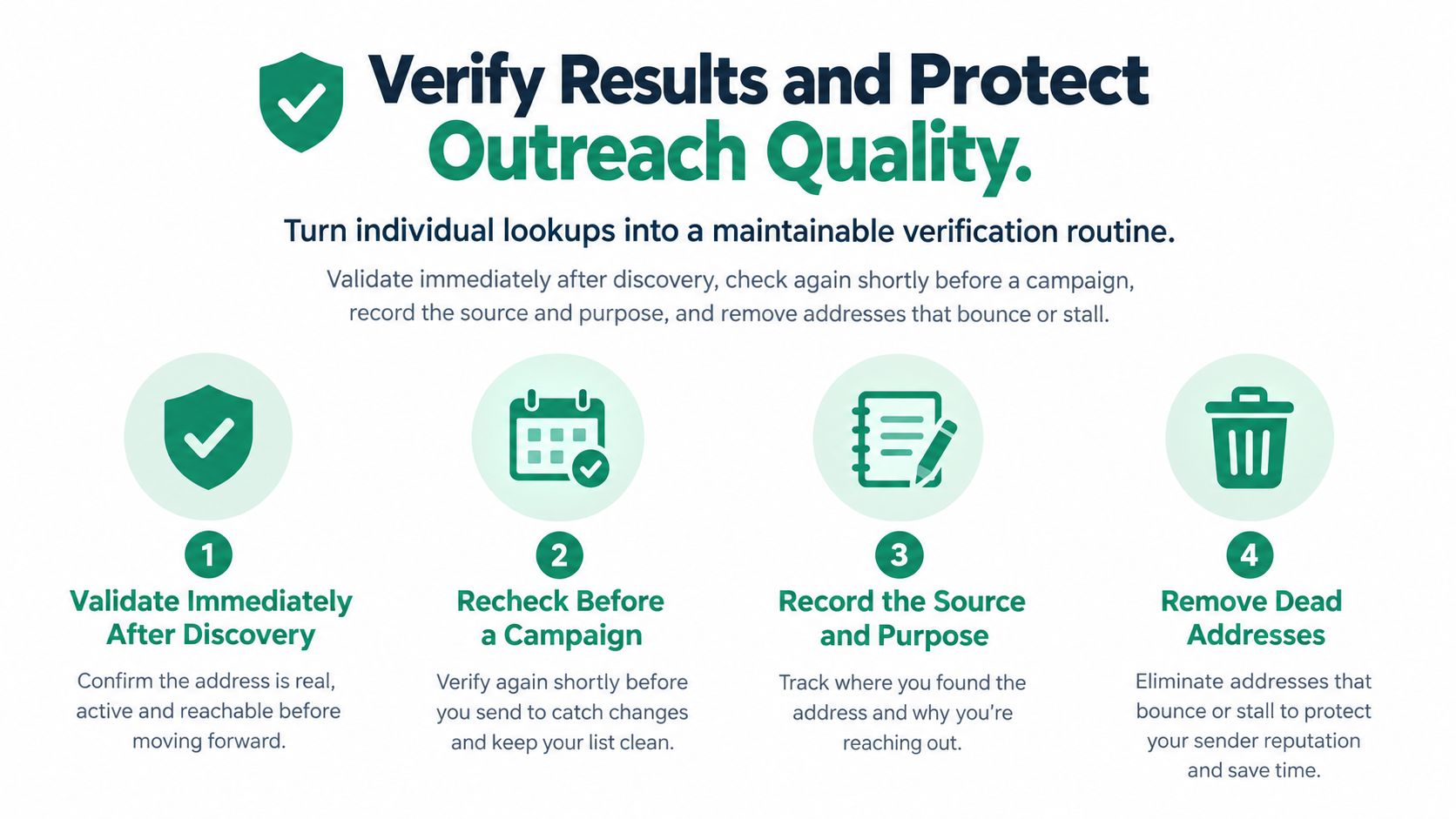
    Validation comes after extraction. Syntax checks catch malformed strings, but they don't establish that a domain receives mail or that a person controls the address. Use domain and mailbox checks where your service, security policy, and lawful purpose permit it, then preserve the result as a validation status rather than deleting every uncertain candidate. The EmailScout email validation workflow can be part of that review stage.

    A five-step infographic showing the process of building an email extraction pipeline for lead generation.

    A cleaning sequence that holds up

    • Normalize: Lowercase addresses, remove line-wrap spaces, and strip punctuation added by surrounding prose.
    • Deduplicate: Compare normalized values, then check against existing CRM records. Keep the original source and capture location alongside the canonical address.
    • Classify: Separate personal mailboxes from role addresses such as info@, noreply@, and postmaster@. A role address isn't automatically invalid, but it usually needs different scoring and routing.
    • Review provenance: Keep the URL, document name, ticket, or CRM field that produced the match. Public text without context is difficult to defend later.
    • Record permission: Treat an extracted address as raw data, not permission to send.

    Legal context varies by jurisdiction and source. Canadian guidance describes address harvesting as the automatic compilation of email lists from external sources and says that, with limited exceptions, PIPEDA prohibits it. The same guidance discusses restrictions under CASL on electronic address harvesting and spyware-like collection. (Canadian anti-spam compliance guidance)

    Compliance checkpoint: Ask where the address came from, why you collected it, what lawful basis applies, how long you'll retain it, and how the recipient can opt out.

    A publicly visible address isn't automatically a marketing permission slip. Internal invoices, documents you already possess, and CRM exports have a different context from indiscriminate collection of public pages. Have counsel review the rules that apply to your market before outreach.

    Putting It All Together

    The cleanest way to extract emails from text is to treat extraction as the opening mile of a lead pipeline. The regex, browser, Python, JavaScript, spreadsheet, and command-line routes all lead to the same operational destination: a normalized address, a validation status, a duplicate check, a source record, and a consent decision.

    Run this checklist on your next file:

    1. Identify the source. Record the page, document, export, ticket, or text block.
    2. Choose the method. Match the tool to the source format and the repeatability you need.
    3. Normalize candidates. Fix whitespace, line wraps, wrappers, and terminal punctuation.
    4. Validate. Separate syntax checks from domain and mailbox checks.
    5. Deduplicate against the CRM. Don't create a new contact because the same person appeared in another export.
    6. Classify addresses. Keep role accounts separate from individual contacts.
    7. Log consent and provenance. Store why the address entered the workflow and whether outreach is permitted.
    8. Make the process repeatable. Document the pattern, script, formula, or extension steps so a teammate can run them next quarter.

    The best extraction method isn't the one with the cleverest regex. It's the one that produces clean fields, traceable origins, and a process your team can repeat without starting over.


    EmailScout can scan webpage content, accept pasted text, explore multiple URLs, and export discovered addresses for your cleanup workflow. Visit EmailScout to turn a wall of source text into a reviewable email list, then apply validation, deduplication, and consent checks before outreach.

  • How to Find Email Addresses for Free Your Ultimate Guide

    How to Find Email Addresses for Free Your Ultimate Guide

    There are really only three ways to find free email addresses: you can manually search through company websites and social media, you can try pattern-based guessing and then verify your guess, or you can use free browser extensions and tools. The fastest and most efficient path is almost always a tool like the EmailScout Chrome extension, which puts the whole discovery process on autopilot.

    Why Free Email Finding Is a Modern Superpower

    A man in a blue blazer works on a laptop, with a green sign saying "DIGITAL SUPERPOWER" and email icons.

    Forget about paying for expensive, often-outdated lead lists and spending hours on manual prospecting. In a world where a direct connection is everything, knowing how to find the right person's email is a genuine superpower for any scrappy entrepreneur, marketer, or sales rep.

    This isn't just a cost-saving tactic; it's a real strategic advantage. It puts you in total control of your outreach.

    This guide goes way beyond theory. I'm going to show you exactly how to tap into the web to build high-quality contact lists without the high price tag. With the right techniques and a few powerful tools, anyone can drive growth and build meaningful connections.

    The Power of Direct Connection

    Let's be honest, in sales and marketing, just getting your message in front of the right decision-maker is half the battle. Gatekeepers, generic info@ inboxes, and even social media DMs are all filters that can water down your message or stop it dead in its tracks.

    An email, on the other hand, is a direct line into your prospect's personal workspace.

    This direct access is huge. It allows for:

    • Personalized Messaging: You can tailor your pitch directly to that individual, referencing their specific role, recent accomplishments, or challenges they're facing.
    • Trackable Engagement: Email tools let you see who's opening your messages and clicking your links. That's invaluable feedback for your entire strategy.
    • Controlled Follow-Up: You can build a structured follow-up sequence that keeps you top-of-mind without feeling pushy or intrusive.

    Of course, to really make free email finding work, it has to be part of thorough prospect research. Knowing who you need to contact is just as crucial as knowing how to find their email.

    A Vast and Growing Opportunity

    The sheer scale of email usage creates a massive opportunity for anyone willing to look. By 2025, experts predict there will be around 4.6 to 4.8 billion email users across the globe, sending nearly 400 billion emails every single day.

    This means millions of new business and personal email addresses are popping up each year. Even a low success rate can translate into thousands of potential leads if you scale your efforts.

    Knowing how to find email addresses for free isn't just a budget-friendly tactic; it's a foundational skill for modern outreach. It democratizes lead generation, allowing small teams and solo entrepreneurs to compete with established players by being smarter and more resourceful.

    Ultimately, mastering this skill is about creating your own opportunities from scratch instead of waiting for them to find you. By blending clever manual tricks with efficient automation, you can build a predictable pipeline of prospects. For a deeper dive, check out our guide to modern marketing and outreach strategies.

    Become an Expert at Manual Email Hunting

    A person typing on a laptop with 'Email Detective' on screen, a magnifying glass and documents nearby.

    Before you let the tools do all the work, it pays to learn the fundamentals. Think of it like a detective learning to spot clues by hand before bringing in the high-tech gadgets. This is where you’ll learn the art of manual email discovery, building an intuitive skill that will make every outreach campaign more effective.

    Mastering these manual techniques isn’t just a backup plan; it’s about understanding the logic that powers the best email-finding software. You'll train yourself to think critically about where information lives online and how to piece together the digital breadcrumbs.

    Harness Advanced Google Search Operators

    Just Googling someone’s name is like casting a massive, messy net. To find email addresses for free with any real precision, you need to use Google Search Operators—often called "Google dorks." These are simple commands that tell Google exactly how to search, narrowing your results with surgical accuracy.

    Instead of just searching for "Jane Doe," you can tell Google where to look and what to look for. This approach uncovers emails that are hiding in plain sight on websites, inside documents, and across professional networks.

    For instance, a powerful query to find a specific role at a company might look like this: site:linkedin.com/in/ "Head of Marketing" "@companydomain.com". This little snippet tells Google to search only within LinkedIn profiles for someone with the exact title "Head of Marketing" who has their company email listed.

    Pro Tip: Don't be afraid to combine multiple operators for even more specific searches. For example, adding filetype:pdf can help you find email addresses inside publicly available PDFs, like conference speaker lists or annual reports.

    To get started, here’s a quick reference table of some of the most effective operators for finding emails.

    Effective Google Search Operators for Email Finding

    This quick reference guide covers powerful Google search commands that help narrow down results and uncover contact information more efficiently.

    Operator Example Usage What It Does
    site: site:company.com "jane doe" Restricts your search to a specific website, perfect for searching a company's domain.
    " " "Jane Doe" email Searches for the exact phrase inside the quotes, eliminating irrelevant results.
    OR "jane.doe@company.com" OR "j.doe@company.com" Searches for either of the specified terms, which is useful when testing multiple email patterns.
    - jane doe -jobs -careers Excludes specific words from your search results, helping you filter out noise.

    Mastering just these four operators can dramatically cut down the time you spend searching.

    Scour Company Websites for Digital Clues

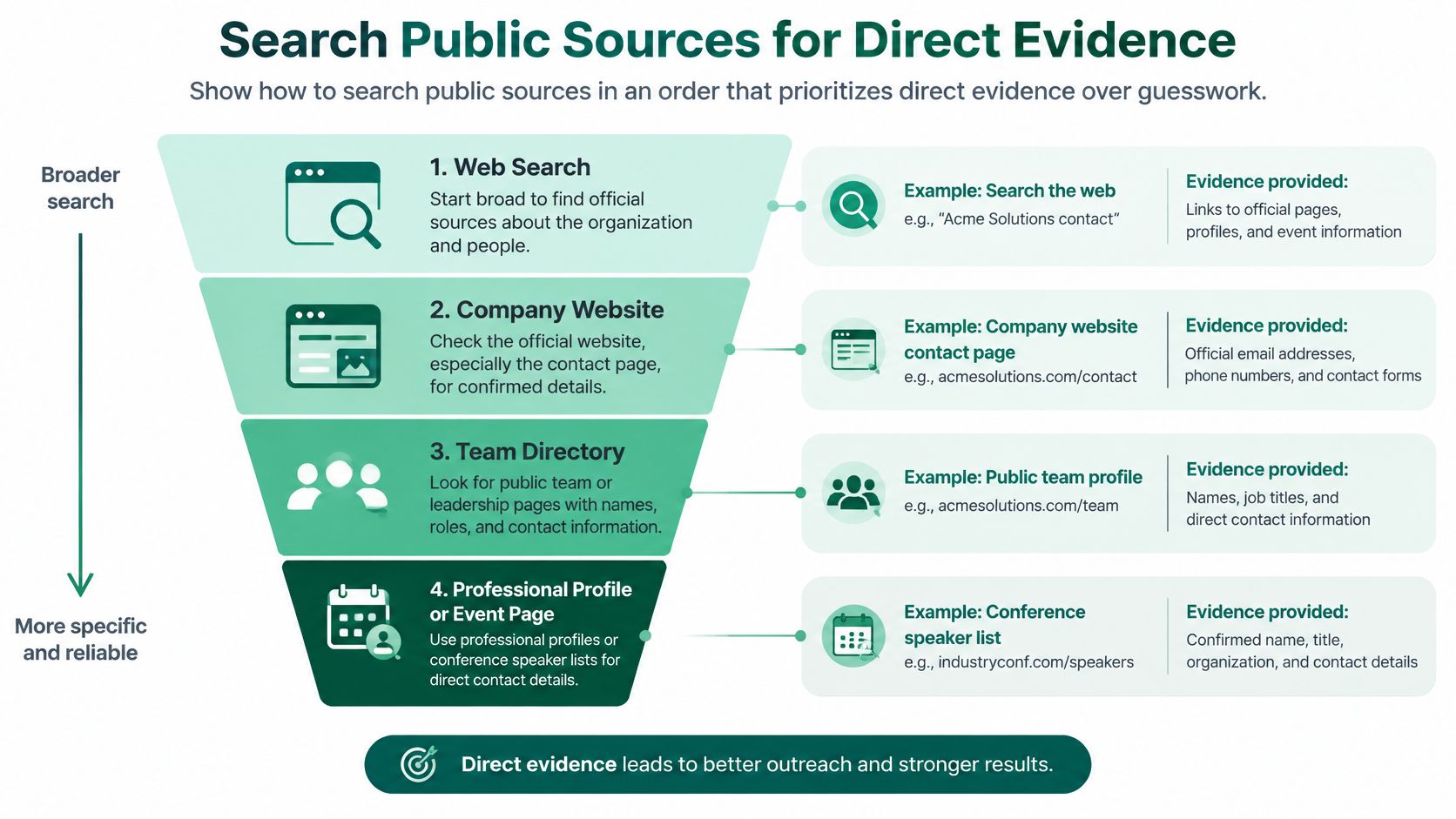
    Company websites are goldmines of information if you know where to dig. Most people glance at the "Contact Us" page, see a generic info@ address, and give up. The real clues are usually buried a little deeper.

    Start by exploring these pages:

    • The 'About Us' or 'Our Team' Page: This is the most obvious first stop. Many companies, especially smaller ones, list key team members and sometimes their direct contact info.
    • The Company Blog: Has your prospect ever written a blog post? Check their author bio. Sometimes, clicking their name leads to a profile page with contact details.
    • Press Releases or 'News' Section: Press releases almost always include a media contact person's name and email. Even if it’s not your target, that one email is often the key to figuring out the company’s standard email format.

    Let's say you find s.jones@company.com in a press release. You can now make a very educated guess that the CEO, Michael Smith, is likely m.smith@company.com. You've just uncovered the pattern.

    Decode the Email Pattern

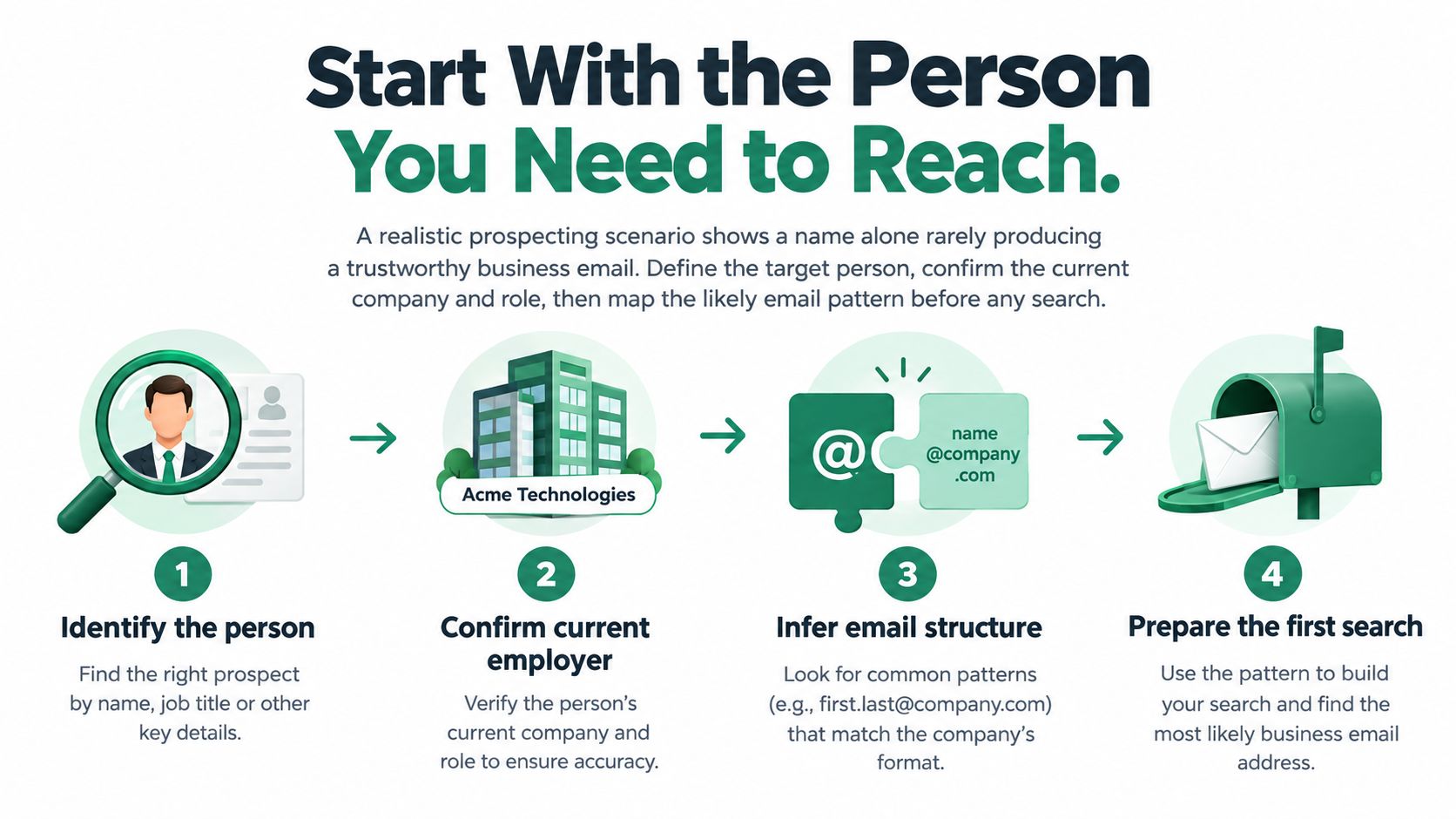
    Almost every company has a preferred email structure. Once you crack it, you can accurately guess the email of nearly anyone in the organization. This is a foundational skill for manual email hunting.

    Common patterns include:

    • firstname.lastname@company.com (e.g., jane.doe@company.com)
    • firstinitiallastname@company.com (e.g., jdoe@company.com)
    • firstname@company.com (e.g., jane@company.com)
    • firstname.lastinitial@company.com (e.g., jane.d@company.com)

    The moment you find a single valid email from a company, you hold the key. Apply that same structure to your prospect's name. This kind of educated guesswork is far more effective than taking random shots in the dark and is a crucial step before you move on to verification.

    Using Free Tools to Automate Your Search

    Mastering the manual hunt for emails is a fantastic skill to have. Think of it like learning to chop wood with a hand axe—it gets the job done, but it’s slow going. If you want to build contact lists at any real scale, you need a chainsaw.

    That's where free email finder tools come in. They take the entire discovery process and put it on autopilot, handing you back hours of your day.

    These tools, usually browser extensions, slot right into your existing workflow. They mimic the logic you'd use for a manual search—scanning pages, guessing patterns, cross-referencing sources—but they do it all in a matter of seconds. Instead of you playing detective, the software does the sleuthing for you.

    From Manual Effort to Automated Results

    Let's put this into perspective. Imagine you’re a sales rep who just found a key prospect on LinkedIn. Manually, you'd start opening new tabs, running a few Google searches, and poking around their company's website to figure out their email format. All told, that's probably a five or ten-minute job for just one contact.

    Now, picture that same scenario with an email finder extension running. You land on the same LinkedIn profile, but this time a little icon pops up. One click, and boom—a verified email address appears. That’s the real difference between manual grunt work and smart automation.

    This isn’t just about raw speed; it’s about maintaining your focus. By offloading the repetitive search, you can dedicate your energy to what actually moves the needle: crafting a personalized message that gets a reply. To take it a step further, you can explore various tools for scraping LinkedIn profiles to complement your email-finding work.

    Game-Changing Features in Free Tools

    The best free tools do more than just find an email with a click. They’re packed with features designed to build entire prospect lists with almost no active effort on your part. Two of my favorites are 'AutoSave' and 'URL Explorer.'

    • AutoSave for Passive List Building: This feature is an absolute game-changer. Once you turn it on, the tool quietly collects contact info in the background while you browse websites or social media. You can research dozens of prospects without ever pausing to manually save a single email.
    • URL Explorer for Bulk Extraction: What if you have a list of company 'About Us' pages or conference speaker bios? Instead of visiting each page, you can just paste the whole list of URLs into the tool's explorer feature. It will crawl every single page and pull out all the email addresses it finds, dropping them into a neat, clean list.

    Features like these transform email finding from a hands-on chore into a passive, background process.

    By automating discovery and verification, free email finders let you build targeted prospect lists at a scale that's flat-out impossible to do by hand. It's the closest you can get to putting lead generation on autopilot without spending a dollar.

    A Practical Example with EmailScout

    Let's walk through a real-world scenario with a popular tool like the EmailScout Chrome extension. Say a digital marketer is looking to connect with marketing managers at mid-sized tech companies.

    First, she uses LinkedIn Sales Navigator to pull up a list of 50 prospects who match her ideal customer profile. Instead of clicking into each profile, she just scrolls down the search results page. With the AutoSave feature running, EmailScout works silently, finding and saving the verified emails of the people on her screen.

    In about a minute, she's collected over a dozen verified contacts without ever leaving the search results. She can export that list and get right to her outreach. This workflow is easily 10x more efficient than doing it manually, which shows how the right tool can fundamentally change your prospecting game. It’s no wonder it’s considered one of the best free email finder tools out there.

    When you embrace automation, you stop trading your time for contact details and start building a scalable system for outreach. It’s the clear dividing line between the old way of slow, manual hunting and the new way of fast, intelligent prospecting.

    The Smart Way to Guess and Verify Emails

    Sometimes, a prospect’s email address seems to have vanished into thin air. You've scoured their website, dug through their LinkedIn profile, and still come up empty-handed. This is when you stop being a detective and start thinking like a strategist by making an educated guess.

    An educated guess isn’t just a shot in the dark; it’s all about logic. Most companies use a standard format for their email addresses. If you can figure out the pattern for just one employee, you’ve likely cracked the code for the entire organization.

    The trick is to find that one anchor point—maybe a media contact listed in a press release or an author bio on the company blog—and then apply that same pattern to your target's name.

    This is often the first step before you start using tools to automate and scale up your efforts.

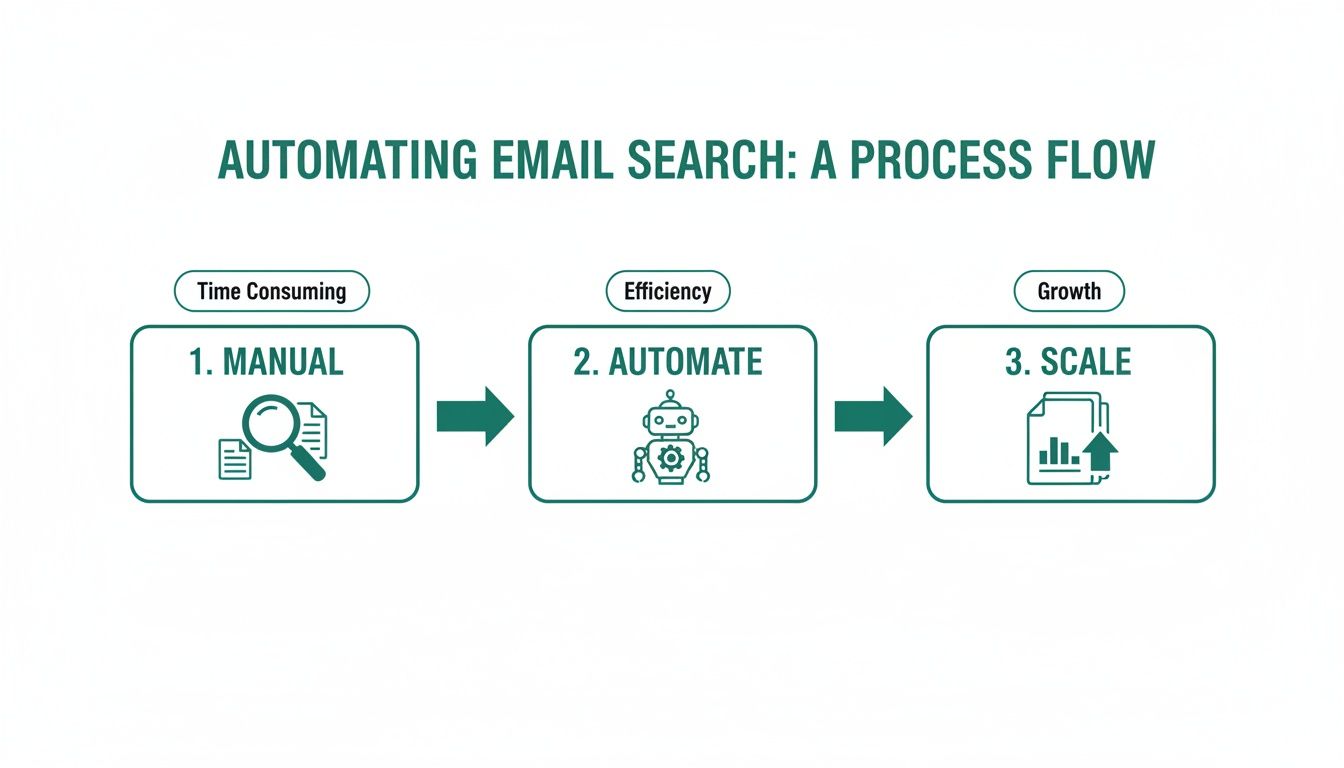
    A diagram illustrating the three-step process of automating email search: manual, automate, and scale.

    As you can see, the process flows naturally from these manual discovery tactics into more automated tools, and finally, to building out your lists at a much larger scale.

    Decoding Common Email Patterns

    While some companies get creative, most stick to a handful of predictable email structures. Your goal is to generate a short list of the most probable combinations for your prospect, let's call her "Jane Doe."

    Here are the most common patterns I see in the wild:

    • firstname.lastname@company.com (e.g., jane.doe@acme.com)
    • firstinitiallastname@company.com (e.g., jdoe@acme.com)
    • firstname@company.com (e.g., jane@acme.com)
    • firstname.lastinitial@company.com (e.g., jane.d@acme.com)

    Start with these four. In my experience, one of them will be the right one more than 80% of the time. The next move is to turn that guess into a confirmed contact—without sending a single email that might bounce.

    Free Verification Methods That Actually Work

    A guess is worthless until it’s verified. Firing off emails to every possible combination is a terrible idea. It not only makes you look unprofessional but can also get your domain flagged and hurt your sender reputation. Instead, you can use a few free methods to confirm which address is the real deal.

    One of my favorite low-tech tricks is the 'Gmail Ping Test.' It's clever and surprisingly simple.

    1. Open a new compose window in Gmail.
    2. Paste one of your guessed email addresses into the "To" field.
    3. Just hover your mouse over the address. Don't click it.

    If that email is tied to a Google account, a little profile card will often pop up, showing the person’s name and sometimes even their photo. That’s your confirmation. If nothing appears, just move on to the next guess on your list.

    Verification is the most critical step. It’s what separates professional outreach from spammy guesswork. Taking an extra 30 seconds to confirm an address can be the difference between starting a conversation and getting a bounce-back.

    Another powerful option is using a dedicated online tool. Our guide on how to validate an email address for free walks through several services that can check if an address can receive mail without ever sending a message.

    For sales reps who spend hours building lists, this is a game-changer. Think about it: if a team of 10 reps each saves just four hours a week, that's 40 hours reclaimed. That’s an entire workweek that can be spent on actual outreach instead of tedious manual searching. This two-part strategy of smart guessing and immediate verification is a cornerstone of finding email addresses effectively and for free.

    Keeping Your Outreach Ethical and Compliant

    Finding someone's email address is just the first domino to fall. It’s what you do next that separates a valuable connection from pure spam. Getting this right is what ultimately determines your success and, just as importantly, protects your reputation.

    Think of it this way: a thoughtful, relevant message sent to a well-researched contact isn't just spam—it's smart business. But blasting a generic pitch to a list you haven't even looked at is the fastest way to get your domain blacklisted. Your goal here is to build bridges, not burn them down.

    Understanding the Rules of the Road

    You don't need a law degree to get the basics of email compliance right. The big regulations, like the CAN-SPAM Act in the U.S. and GDPR in Europe, are all built on a handful of common-sense principles: transparency and respect.

    These rules aren't just legal hoops to jump through; they're a blueprint for building trust. When you respect someone's inbox, you immediately come across as a credible professional.

    Here’s what that looks like in the real world:

    • Be Honest About Who You Are: Your "From" name, reply-to address, and other routing info must be accurate and clearly identify you or your business. No games here.
    • Write Clear Subject Lines: Your subject line needs to reflect what's actually in the message. Misleading subjects are a massive red flag for spam filters and people alike.
    • Provide an Unsubscribe Option: You must include a clear and simple way for people to opt out of future emails. This one is completely non-negotiable.
    • Honor Opt-Outs Promptly: When someone clicks unsubscribe, you have to process that request quickly. The general rule is within 10 business days.

    Following these rules isn't just about avoiding hefty fines. It's about maintaining a healthy sender reputation, which is the key to making sure your emails actually land in the inbox in the first place.

    Personalization Is Your Best Defense

    The single best way to stay on the right side of ethical outreach is through genuine personalization. When you prove to a prospect that you’ve actually done your homework, your email transforms from an unwelcome interruption into a potential solution.

    And I'm not just talking about using a {{first_name}} merge tag. I mean referencing a specific project they led, a recent company milestone, or a challenge you know is unique to their industry. That's the kind of detail that shows you have a legitimate interest.

    An email that says, "I saw your company just launched a new initiative in AI, and I have an idea for how to amplify its reach," is infinitely more ethical—and effective—than a generic, "Can I have 15 minutes of your time?"

    When you find email addresses for free, you’re really getting an opportunity to start a conversation. Personalization ensures that conversation starts with mutual respect and relevance, making a positive response far more likely.

    Cold Outreach Dos and Don'ts

    To keep it simple, here’s a quick-reference table to guide your outreach. Sticking to these principles will help you build a solid pipeline while protecting your brand.

    The 'Do' List The 'Don't' List
    Do provide genuine value in every email. Don't use deceptive or misleading subject lines.
    Do make your unsubscribe link easy to find. Don't buy generic, unverified email lists.
    Do research your prospect and their company. Don't ignore or delay unsubscribe requests.
    Do keep your message concise and relevant. Don't add people to your newsletter without consent.

    Ultimately, successful outreach is a marathon, not a sprint. Every single email you send is a deposit (or a withdrawal) into your sender reputation account. By sticking to these ethical guidelines, you ensure that your ability to connect with prospects stays strong for the long haul, making your free email-finding efforts a truly sustainable strategy.

    Frequently Asked Questions

    When you're diving into the world of free email finding, a few questions always seem to pop up. Is it legal? Do these free tools actually work? How do I find emails without spending all day on it?

    Let's cut through the noise. Here are the straight-up answers to the most common questions we hear, so you can start prospecting with confidence.

    Are Free Email Finders Accurate?

    Honestly, many of them are surprisingly good. The best free tools aren't just taking wild guesses; they're scraping public data, recognizing common email patterns, and even doing quick server checks to see if an address is real.

    No tool is ever 100% perfect, but a solid extension like EmailScout gives you a massive advantage. It's worlds better than relying on outdated lists or just guessing. These tools validate contacts by checking multiple sources, which is key to keeping your bounce rate low and protecting your sender reputation.

    How Many Free Emails Can I Actually Find?

    This is where you'll see the biggest difference between tools. A lot of services will give you a taste with a monthly credit system, often capping you at just 50 or 100 free searches. After that, you're hitting a paywall.

    But the game is changing. EmailScout, for instance, gives you unlimited free email lookups on individual profiles. For anyone on a budget—freelancers, startups, sales reps—that’s huge. While you might need a paid plan for big, bulk searches, the core feature of finding emails one by one is genuinely free and unlimited.

    What Is the Fastest Way to Find an Email on LinkedIn?

    Hands down, it's a browser extension. Don't even think about doing it manually unless you have tons of time to kill. A good extension turns a five-minute scavenger hunt into a five-second click.

    It’s incredibly simple in practice:

    • Land on someone's LinkedIn profile.
    • The extension gets to work in the background, analyzing the page.
    • Click a button, and the verified email appears.

    It does all the heavy lifting—guessing patterns, checking public records, and verifying the result—almost instantly. It’s as close to a magic wand for prospecting as you're going to get.

    The real power of a browser extension isn't just the speed. It's how it fits right into your workflow. You can find and save contact info without ever leaving the page, keeping you in the zone and productive.

    Is Cold Emailing Someone Legally Risky?

    It's not, as long as you're smart and ethical about it. Sending cold emails for legitimate business reasons is completely legal under regulations like the CAN-SPAM Act (US) and GDPR (Europe).

    These laws are really just based on common sense. Just stick to these simple rules:

    • Be transparent. Say who you are and why you're emailing.
    • Offer an easy way out. Include a clear unsubscribe link.
    • Honor opt-outs immediately. No questions asked.

    As long as you’re trying to provide real value and not just spamming, you’re on the right side of the law. A personalized, relevant message to a well-researched contact is effective, compliant, and the right way to start a business conversation.

    Can I Get in Trouble for Guessing an Email Address?

    Nope. The act of guessing an email isn't the problem. The risk comes from what you do next.

    If you send a message to a guessed, unverified email and it bounces, that’s a strike against you. A high bounce rate kills your sender reputation, which means even your valid emails are more likely to land in the spam folder.

    This is why verification is a non-negotiable step. Always run a guessed email through a verification tool or use a simple ping test in Gmail to make sure it’s active before you send anything. Guessing is a great strategy, but only when you pair it with diligent verification.


    Ready to stop searching and start connecting? The EmailScout Chrome extension gives you unlimited free email lookups, helping you build targeted prospect lists faster than ever. Install EmailScout for free today and transform your outreach.