
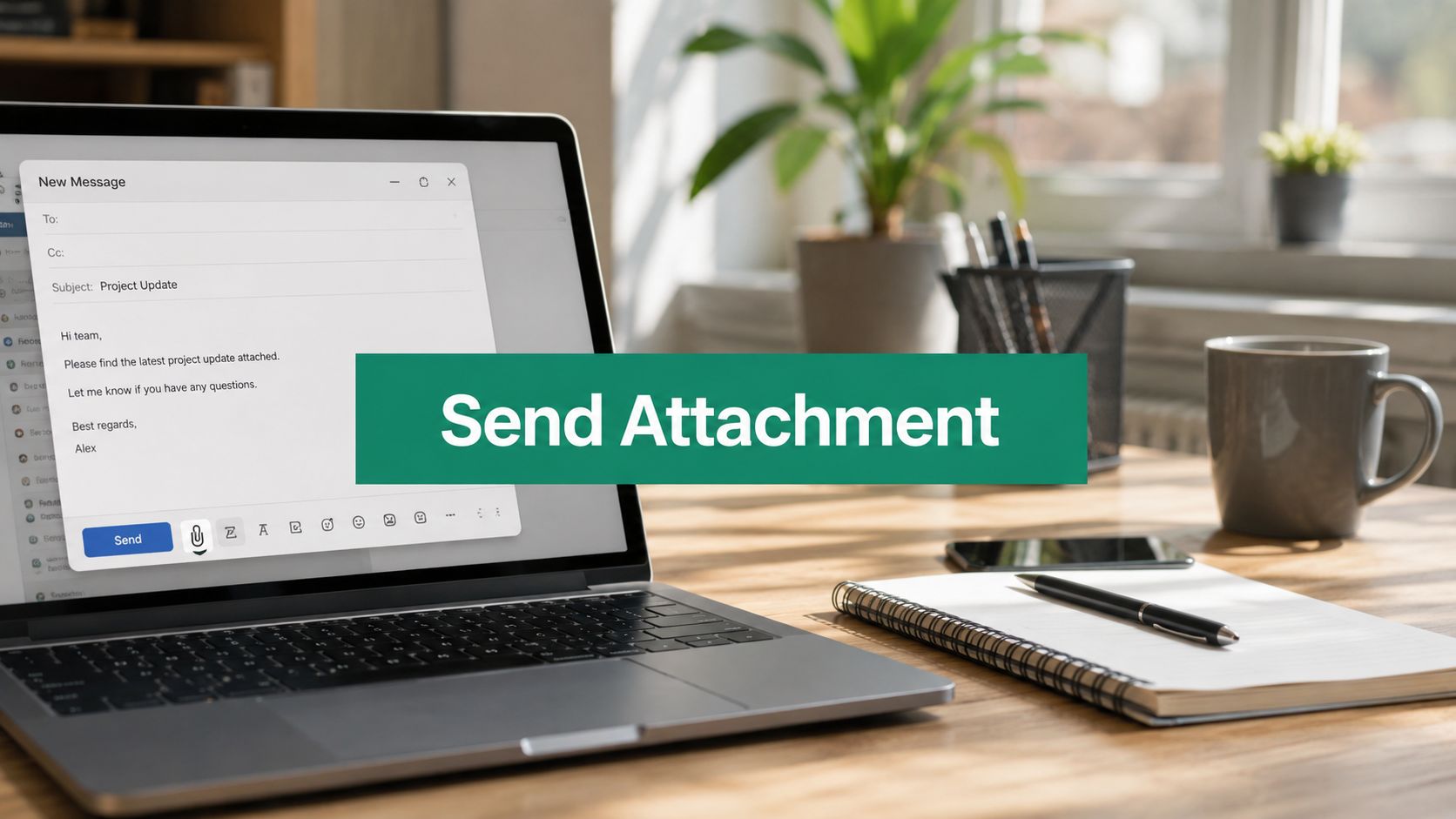
Most advice on how to send an attachment by email is incomplete. It tells you where the paperclip icon is, then stops right before the part that affects reply rates, spam placement, and whether your message gets seen at all.
For internal communication, attaching a file is usually routine. In sales, partnerships, recruiting, and outbound marketing, it isn't. A file can help a deal move faster, or it can make a clean email look risky to a receiving server. That trade-off matters more than the click path inside Gmail or Outlook.
The mechanics are easy. The judgment call is where people often get sloppy.
Why Your Next Attachment Could Kill Your Outreach
Sales reps often assume an attachment makes an email more useful. They attach a one-pager, proposal, deck, or pricing PDF because it feels proactive. In cold outreach, that instinct often works against you.
Research from Hunter's email attachment guidance says sending attachments to prospective customers increases spam flagging, and its 2026 guidance explicitly advises senders to send a link instead of an attachment for cold emails. That's the part most basic tutorials miss.
Cold email isn't the same as account management
If you're emailing an existing customer who asked for a contract, an attachment is normal. If you're emailing a new prospect who has never replied to you, an attachment changes how your message is evaluated.
A receiving server doesn't know your intent. It sees a stranger sending a file.
That creates three practical problems:
- Spam filtering risk: An unsolicited file can make a cold email look more aggressive than a simple text email.
- Bounce risk: File handling adds another failure point before the recipient ever sees your note.
- Trust friction: Prospects are less likely to open a file from someone they don't know.
Practical rule: If the recipient didn't ask for the document, default to a cloud link instead of a direct attachment.
This is one reason strong outbound teams spend so much time learning how to avoid spam filters before they scale campaigns. Deliverability isn't just about subject lines and sender setup. It also comes down to what you include in the message.
The attachment can kill the timing of the deal
The worst outcome isn't always a hard bounce. Sometimes the email arrives, but the recipient hesitates. A PDF proposal from an unknown sender asks for more commitment than a short email with a clear value proposition and a simple link.
That's why attachments work better later in the conversation than at the start of it.
Use a file when the relationship justifies it. Skip it when you're still trying to earn attention.
A cold email should be easy to read, easy to trust, and easy to answer. An attachment often hurts all three.
If your current process is "always attach the deck," that's not a process. That's a habit. And in outbound, bad habits scale fast.
The Standard Guide to Attaching Files When You Must
When a file is necessary, the actual steps are straightforward. Every major email client follows the same pattern: open a new message, click the paperclip, choose the file, confirm it appears in the compose window, then send.

Gmail
- Open Compose: Click Compose in Gmail.
- Select the paperclip: Choose the Attach files icon at the bottom of the draft.
- Pick your file: Browse your computer and select the document, image, or PDF.
- Confirm upload: Wait until the file name appears in the email.
- Finish the message: Add your subject, body copy, recipient, then send.
If you're sending a sequence or outreach batch that needs personalized files, this walkthrough on the Mail Merge for Gmail attachment process is useful because it shows how attachments fit into a mail merge workflow without turning the email into a messy manual job.
Outlook and Yahoo Mail
Outlook usually shows an Attach File button or paperclip in the compose ribbon. Click it, choose the file source, then insert the document into the email.
Yahoo Mail uses the same logic. Start a new email, click the paperclip, choose the file, and wait for the upload to complete before hitting send.
iPhone and Android mail apps
On mobile, the exact icon placement changes by app, but the process doesn't.
- Start a new email in Apple Mail, Gmail app, or Outlook app.
- Tap the menu or paperclip inside the compose screen.
- Choose a source such as Files, Photos, Google Drive, or recent documents.
- Insert the file and confirm it loads.
- Review before sending because mobile apps make it easier to miss the wrong file.
Don't trust muscle memory on mobile. Always confirm the actual filename before you send.
The operational rule
The UI part is simple. The discipline is deciding whether you should attach the file at all. If the file is expected, relevant, and requested, attach it. If not, use a link and keep the email lighter.
That's the actual professional standard.
The Strategic Choice Attachment vs Cloud Link
For professional outreach, the better question isn't "how do I attach this file?" It's "what's the lowest-friction way to get this content viewed?"
Most of the time, that's a cloud link.
What changes when you send a link
A Google Drive, OneDrive, Dropbox, or SharePoint link gives you more control than a static attachment. You can update the file after sending, restrict access, and avoid forcing the recipient to download something immediately.
That matters in sales because sending isn't the goal. Opening and engaging are the goals.
Here's the clean comparison.
| Factor | Direct Attachment | Cloud Link |
|---|---|---|
| Deliverability | More likely to create friction in outreach because the message carries a file | Usually cleaner for outbound because the email itself stays lighter |
| Recipient experience | Requires download or preview from the inbox | Lets the recipient choose when to open the file |
| Version control | Fixed at the moment you send it | You can update the linked file after sending |
| Access control | Limited once it leaves your outbox | You can change permissions or revoke access |
| Follow-up workflow | Harder to know whether the file was viewed | Some platforms provide file activity visibility |
| Best use case | Requested documents, signed forms, internal exchange | Cold outreach, large assets, evolving decks, shared resources |
When attachments still make sense
There are valid reasons to attach a file directly.
- Signed or final documents: Contracts, invoices, and approved files are often easier as attachments.
- Recipient preference: Some buyers hate external links and want the file in the email.
- Offline access: A recipient may need a local copy right away.
- Closed-loop communication: Internal teams and warm contacts usually handle attachments without the same trust barrier.
When a cloud link is the stronger move
Cloud links are usually better when the file is part of persuasion rather than fulfillment.
- Cold prospecting: You want the message to feel safe and easy to read.
- Large presentations: Links avoid file-size problems and inbox rejection.
- Living documents: A deck, proposal, or media kit often changes after send.
- Shared team assets: Drive or OneDrive permissions are easier to manage than resending revised files.
A cloud link turns the email into an invitation. An attachment turns it into a delivery.
That distinction matters. Prospects don't want homework in the first touch. They want a reason to care.
If you're working in outbound, use this rule: attach only when the file completes an expected step in the conversation. Use a link when the file is there to support interest, not demand it.
Mastering Large Files and Technical Limits
Attachment size is where a simple send turns into an avoidable failure. Big files slow uploads, hit mailbox limits, and create back-and-forth that stalls momentum with prospects.

The familiar 25 MB cap in Gmail and Outlook exists because email infrastructure was never designed to move heavy assets efficiently. As Email Vendor Selection explains in its overview of attachment limits, mailbox providers set hard caps to protect server capacity and keep mail flow stable.
A safer range for deliverability
Platform limits are not working targets. They are stop points.
For sales outreach and marketing sends, a smaller file is usually the smarter operational choice. Keeping total attachments under 10 MB reduces friction across inbox providers, mobile devices, and corporate mail systems. Under 5 MB is even better when the file is part of external communication. If your team sends at volume, broader email sending limits for outreach teams matter too, because attachment weight adds pressure to systems that already watch volume, domain reputation, and message patterns.
Option one, compress the file
Compression makes sense when the recipient needs the file attached and the content can shrink without losing usefulness.
Use it for cases like these:
- Large PDFs: Image-heavy documents often carry unnecessary weight. A tool like Compress pdf can reduce the file before you send it.
- Grouped documents: A ZIP file can keep related items together and cut clutter in the inbox.
- Asset bundles: Logos, one-pagers, and image sets are easier to download as one package than as several separate attachments.
File naming matters here too. Keep names short, clean, and readable so the recipient knows what arrived without opening a mystery file.
Option two, upload and send a direct link
Use a cloud link when the file is large, still changing, or supporting outreach rather than completing a transaction.
- Upload the file to Google Drive, OneDrive, Dropbox, or SharePoint.
- Set the permissions so the recipient can open it without requesting access.
- Create a direct share link to the file itself, not a vague folder destination.
- Add one line of context in the email body so the recipient knows what the file is and why it matters.
That last step gets missed often. A bare link gives the recipient one more reason to ignore the email.
Here's a quick walkthrough if you want a visual refresher before sharing a file through email:
The operational decision
Compression fixes size. Cloud sharing fixes process.
In practice, that distinction matters more than the paperclip itself. If the recipient needs a final file they can store, sign, or forward internally, attach or compress it. If they just need access to a deck, proposal, or media kit, send the link and keep the email lighter, faster, and easier to trust.
Pro-Level Protocol Security, Deliverability, and Etiquette
Once you move past the paperclip, attachment sending becomes a protocol. Good teams don't just send files. They check format, naming, body copy, recipient context, and timing before the message leaves the outbox.
That's what keeps a useful attachment from becoming a blocked one.
Deliverability rules that actually matter

The first rule is size discipline. For maximum deliverability, keep total attachment size under 10 MB, and sanitize filenames by removing spaces and avoiding special characters or double extensions like .img.exe, which are known spam triggers, according to EmailConsul's deliverability recommendations.
The second rule is body content. Emails that contain only an attachment and no real message are much easier for filters to distrust. Add a short explanation in the body so the file has context.
Field note: If the recipient has to guess why the file is there, the email is weaker before they ever click.
If your team struggles with inbox placement more broadly, fix the sending environment too. This guide on how to fix email authentication is useful because attachment strategy works best when the underlying deliverability setup is already solid. The same principle applies to your overall email deliverability improvement process. A clean attachment can't rescue a weak sending setup.
Security practices that prevent avoidable failures
Some file types should never be part of cold outreach. Executable and script-based formats such as .exe, .scr, and .js are automatically flagged by modern spam filters and antivirus gateways, leading to near-100% delivery failure rates, as described in Alibaba's attachment delivery guide.
That means two things in practice:
- Avoid dangerous formats entirely: If the file can execute code, don't send it as an email attachment to prospects.
- Use ZIP carefully: If you're compressing multiple files, ZIP is the standard fallback.
- Protect sensitive files: Password-protect the ZIP when the content is confidential.
- Share the password out of band: Use a phone call or SMS, not the same email thread.
Also verify the recipient address before sending. A typo defeats every other precaution because the message never reaches the intended person.
Etiquette is part of deliverability
Etiquette is often treated as soft advice. In practice, it changes engagement.
Guidance covered in Woculus's email attachment best practices highlights a simple but often ignored professional standard for 2026: ask first about sending attachments, especially when timing or inbox load may be an issue across time zones and business hours.
That matters for global outreach.
- Ask before sending a large file: A quick note like "Would you like the deck as a PDF or a Drive link?" reduces friction.
- Respect local working hours: An unexpected attachment sent after hours is easier to ignore than a short message with a link.
- Match the file to the stage: Early outreach needs less weight. Later-stage conversations can carry more material.
- Make the recipient's next step obvious: Tell them exactly what the file is and why it matters.
Send attachments as part of a conversation, not as a surprise.
A practical pre-send checklist
Before you send any business email with a file, run this check:
- Was the file requested, expected, or clearly relevant?
- Is attachment the right format, or would a cloud link be easier?
- Is the file size disciplined enough for smooth delivery?
- Does the email body explain what the file is?
- Is the filename clean and professional?
- Have you avoided risky file formats?
- If sensitive, is the file protected and the password shared separately?
- Are you sending it at a sensible time for the recipient?
That's the difference between knowing how to send an attachment by email and knowing how to send one well.
If you're building outbound lists and need a faster way to reach the right people before you ever think about attachments, EmailScout helps sales teams, marketers, and founders find decision-maker emails quickly and keep outreach moving.